Which AI Design Tool Should You Use? A Decision Framework for Product Teams
Updated February 3, 2026
Which AI Design Tool Should You Use? A Decision Framework for Product Teams
The confusing part about evaluating AI design tools isn't the features. It's that they all claim to do similar things. Text-to-UI generation. Design system integration. Component generation. Export to Figma. On the surface, they sound almost interchangeable.
But they're not. The difference isn't in what they claim to do—it's in what stage of the design workflow they actually solve for, what constraints they respect, and what output quality they deliver. A tool that's excellent for early-stage exploration is terrible for production design. A tool that respects design system constraints struggles with brand personality. A tool that generates fast might produce generic output that requires complete rework.
Picking the right AI design tool isn't about comparing feature lists. It's about understanding what stage of design you're in and what your team actually needs to move faster.
Why Tool Selection is Hard
The reason tool selection feels confusing is that most AI design tools solve the same problem—turning concepts into designs—but at different points in the workflow and with different tradeoffs.
Some tools optimize for speed. They generate screens in seconds. The tradeoff is that the output is basic and requires refinement. Other tools optimize for quality. They generate fewer screens per session but the output is closer to final. The tradeoff is slower iteration. Some tools build in design system awareness. The tradeoff is that they're less flexible for exploring unconstrained directions.
On top of these tradeoffs, different tools have different expectations about what "input" looks like. Some expect a detailed PRD. Others work from sketches. Some take vague descriptions and fill in the gaps. This means the tool that works for one team might not work for another team even if they're building similar products.
The only way to navigate this is to understand what you actually need, then match tools to that need instead of comparing tools on abstract features.
Decision Axis 1: What Stage of Design Are You In?
The first decision axis is simple but fundamental: are you in exploration mode or production mode?
Exploration happens when requirements are still forming. You're testing directions, evaluating concepts, seeing what resonates with users. The constraint at this stage is that you don't want tools that force rigid constraints. You want tools that generate quickly so you can test multiple directions and see what works.
Uizard is excellent for exploration. It takes rough sketches or screenshots and turns them into clean mockups fast. The output is generic UI that you can refine, which is fine because you're still exploring. Flowstep is also strong here—it generates quick screens from text that you can use to test directions.
Production is when requirements are clear and you're designing the actual product that will ship. The constraint at this stage is quality and consistency. You don't want to explore ten directions. You want to generate the right direction efficiently and refine toward excellence.
Moonchild is built for production. It takes clear requirements and generates cohesive, system-aware designs that are close enough to final that refinement is the work, not rebuilding.
This distinction matters because using an exploration tool for production leads to frustration. You generate something, realize it needs significant work, and lose the speed advantage. Using a production tool for early exploration feels limiting—the system constraints force directions before you're ready to commit.
Figure out which stage you're in. Are requirements still forming, or are they clear? Is your primary goal to test directions, or to quickly execute on a defined direction? That answer determines which tools are even relevant.
Decision Axis 2: Do You Have a Design System?
The second decision axis is whether you have a defined, constrained design system that the tool needs to respect.
Constrained generation is when the AI respects your existing design system. Your colors, typography, spacing, components, and patterns are inputs to generation. The output is screens that already match your brand and system. This is powerful because you avoid the rework of manually applying your system to generated designs.
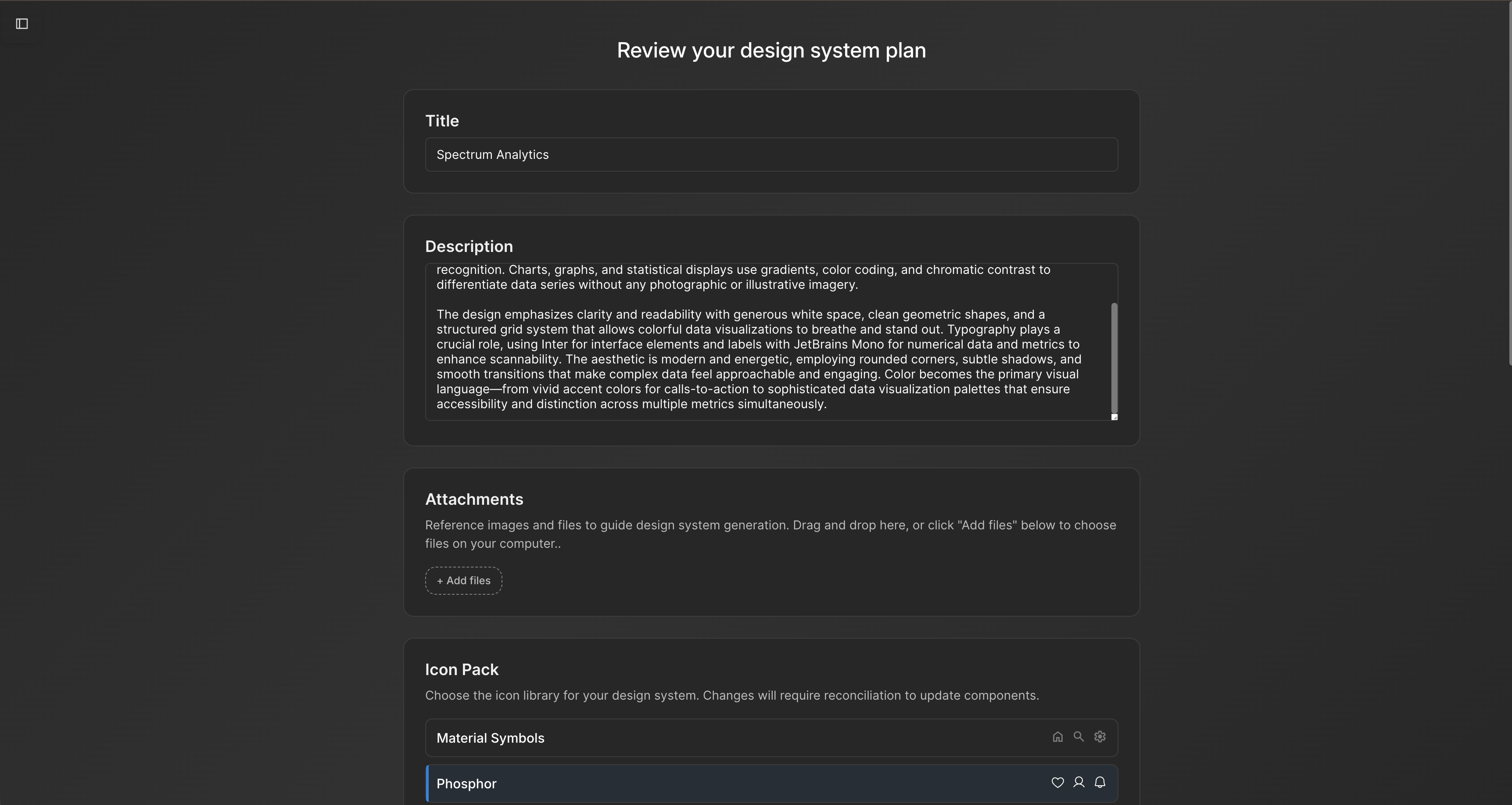
Moonchild, UX Pilot, and Figma Make all handle constrained generation. You define your system, and generation respects those boundaries. The quality advantage is significant. A designer doesn't spend hours restyling generated screens to match the brand. The screens already match.
Unconstrained generation is when the tool generates freely without system constraints. Uizard, Visily, and Flowstep work this way. They generate what you ask for without being locked to your existing system. This is helpful if your system doesn't exist yet, or if you're exploring in a direction that diverges from your current system.
If you have a mature design system and want to maintain consistency, you want constrained generation. If you don't have a system yet or you're exploring directions outside your current system, unconstrained generation works fine.
This axis is important because the wrong choice here creates frustrating rework. A team with a defined system using an unconstrained tool generates screens they immediately need to restyle. A team in discovery using a constrained tool feels limited by the system even though the system shouldn't apply yet.
Decision Axis 3: Team Size and Workflow
The third decision axis is how your team is structured and how collaboration needs to work.
Solo designers have a different constraint than design teams. A solo designer's bottleneck is output speed. You need to generate designs fast so you can refine them yourself. Moonchild is excellent because you can generate multi-screen flows and then refine in Figma. Uizard is excellent because you can sketch and convert quickly. Both tools let you work independently and produce output that's refined enough for handoff.
Design teams have a different constraint: consistency and collaboration. Multiple designers need to work on the same designs. Feedback and iteration need to be fast. Figma is the collaboration hub, and tools that export cleanly into Figma make the team more efficient. Moonchild exports natively to Figma, making it a natural choice for design teams. Figma Make is built into Figma, so it's always integrated.
PM-led design is a specific workflow where product managers drive initial direction and designers refine. Moonchild is designed for this. A PM can write a brief, Moonchild generates initial designs, and designers refine from there. The tool lowers the barrier for PM input while maintaining quality output. This workflow only works if PMs think visually and understand the system. If they're purely functional, the tool will struggle to interpret intent.
Agencies have a different constraint: speed and client handoff. You need tools that generate quality output fast, export in formats clients can use, and iterate efficiently. Moonchild is built for this. Generate high-quality screens, export for client review, iterate quickly. The design system integration ensures brand consistency for the client's product.
Understand your team structure. What's your primary workflow bottleneck? Is it output speed, collaboration consistency, client communication, or something else? Match tools to that constraint.
Decision Axis 4: Where Does Output Go?
The fourth decision axis is what happens to generated screens after generation. Do they stay in a design tool, become code, go into your design system, or become prototypes?
If output stays in Figma for refinement and collaboration, you want tools that export cleanly to Figma as editable components. Moonchild's Figma export is high quality. Figma Make generates natively in Figma. Both work well for workflows where Figma is the source of truth.
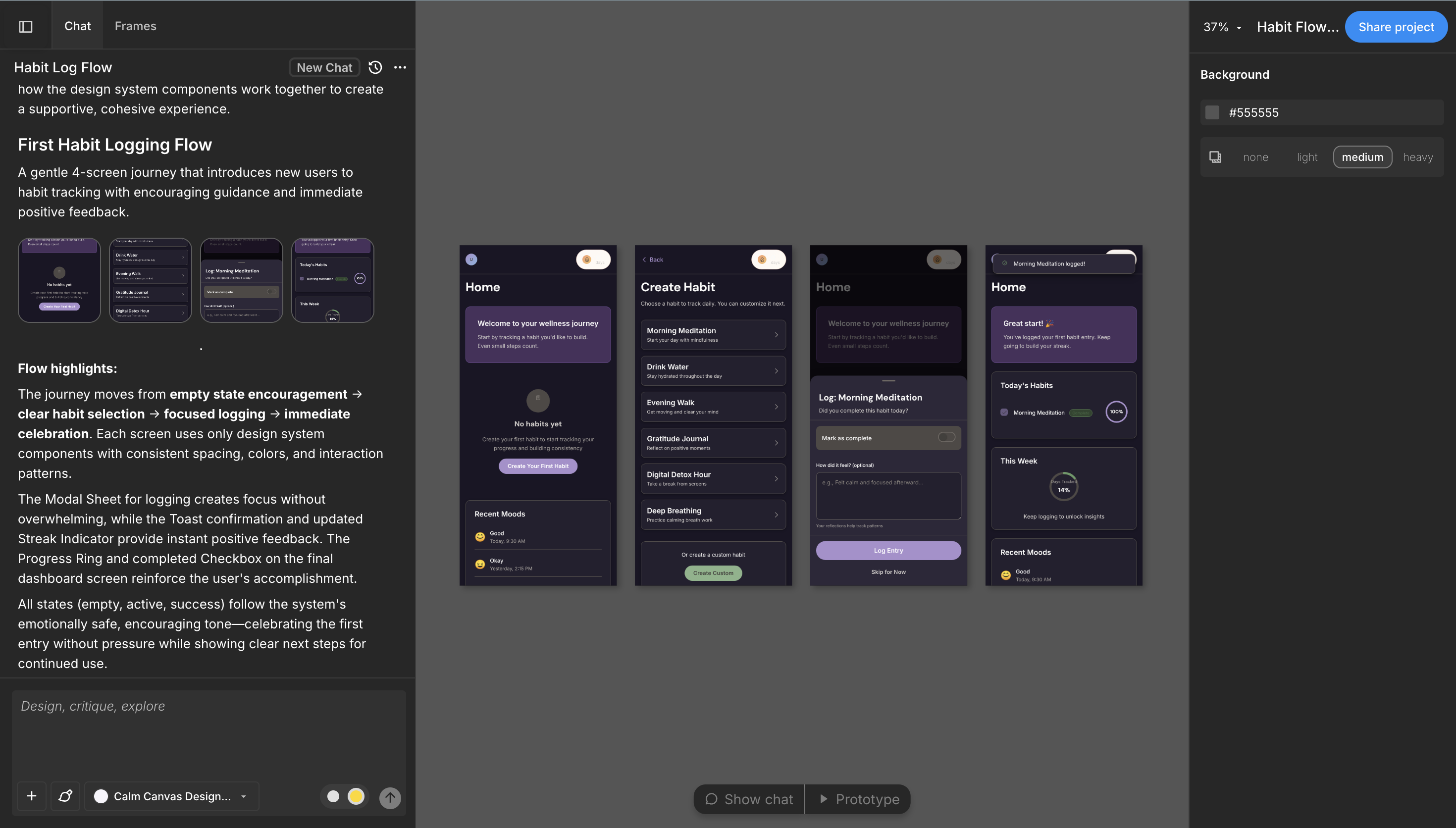
If output becomes code, you need tools that generate production-ready code or at least code that's a strong starting point. Moonchild generates code-ready component specifications. Framer generates functional code for web. Most other design-focused tools generate visual mockups, not code. Know whether your workflow requires actual code generation or if visual design specs are sufficient.
If output goes into your design system as new components or patterns, you need tools that understand your system deeply and generate in ways that can be directly incorporated. Moonchild integrates with design systems and generates components that fit into existing patterns. Uizard generates generic components that you'd need to adapt for your system.
If output becomes prototypes for testing, you need export options that prototyping tools can work with. ProtoPie handles sensor-based testing. Framer handles interactive web prototypes. Figma has built-in prototyping that works well for basic click-through testing.
Your export needs shape which tools actually work for your workflow. A team that needs code generation benefits from different tools than a team that only needs visual designs. A team using a design system as source of truth needs different tools than a team that treats Figma as source of truth.
Tool Recommendations by Profile
Here are practical recommendations for common team profiles.
Startup PM or Solo Designer: Your constraint is speed. You need tools that generate quickly and export in formats you can refine. Start with Moonchild if you have a defined system and clear requirements. Start with Uizard if you're sketching a lot or exploring directions. Add Figma Make once your primary design direction is set and you need to work with collaborators. Total tools: 2 to 3.
Early-Stage Design Team: You have clear requirements and a defined system. Your constraint is consistency and collaboration. Moonchild generates initial designs with system awareness, Figma is your collaboration hub, and Figma Make handles in-canvas iteration. Optional: add Uizard if sketch-to-digital is a common workflow. Total tools: 2 to 3.
Mid-Stage Team with Design System: You have a mature system and want to maintain consistency while moving fast. Moonchild respects your system and generates quickly, Figma is your design tool, and Figma Make handles detailed iteration. Optional: add UX Pilot if journey mapping is important. Total tools: 2 to 3.
Interaction-Heavy Product: You design motion, micro-interactions, and complex states. Your core tools are Figma for design and prototyping, Figma Make for generation, and Framer for interactive web experiences. Moonchild might feel limiting for exploration because of system constraints. You need more flexible tools. Total tools: 2 to 3.
Agency or Services Firm: Your constraint is rapid client handoff with high quality. Moonchild generates client-ready designs quickly, Figma is your refinement and collaboration tool, and Uizard helps if you sketch with clients. Export quality is critical because clients or their developers will use these files directly. Total tools: 2 to 3.
Enterprise with Multiple Products: You have multiple teams using shared systems. Your core is Moonchild for generation with system awareness, Figma for design management and collaboration, and UX Pilot for complex flow generation. The shared system becomes a constraint that keeps all teams consistent. Total tools: 2 to 4.
Notice the pattern: most teams succeed with 2 to 3 tools, not more. The core is usually generation plus design collaboration. Specialists are added for specific workflows only if the workflow is common enough to justify the tool.
The "Try Before You Stack" Approach
The best decision framework includes testing before commitment. Instead of choosing a tool based on features, pilot it with a real project.
Take a small project or feature that your team would normally design. Use the tool you're considering to generate initial designs. Don't optimize the process—just use the tool as the vendor recommends. Then measure three things: how long did generation take, how much refinement did the output require, and did designers find the output useful or did it create more work?
If generation took two hours and the output required complete rework, that's not the tool for you. If generation took two hours and the output was 70 percent done, that's worth further evaluation. If generation took two hours and the output was ready to refine and refine took two hours, that's a solid tool for your workflow.
Also evaluate the export and handoff. If exporting to your next tool is one click and the structure is preserved, the tool fits your workflow. If export requires file conversion or manual reorganization, friction is building.
Run this pilot with at least one tool, ideally two if you're undecided. Spend a real project's worth of time, not just five minutes of playing with the demo. Your team's reaction to the actual output matters more than the vendor's claims.
Common Mistakes in Tool Selection
Most teams make predictable mistakes when choosing AI design tools.
The first is choosing based on features instead of workflow fit. A tool might claim to do ten things, but if only two things fit your actual workflow, the other eight features are noise. Evaluate tools based on how well they solve your specific constraint, not based on the length of the feature list.
The second is choosing based on speed alone. A tool that generates fast but produces garbage output isn't actually faster. You spend the time refining or rebuilding. The right measure is time from requirement to final design, not generation time alone.
The third is expecting perfect output. All tools require iteration. The question is whether iteration is faster than human design from scratch. If a tool generates 70 percent done and iteration takes an hour, that's useful. If a tool generates 30 percent done and iteration takes five hours, that's not accelerating you.
The fourth is not considering team workflow. A tool might be amazing in isolation but if it doesn't integrate with how your team works—your design system, your collaboration process, your handoff workflow—it creates friction that erases speed gains.
The fifth is choosing a tool too early. If your requirements are still forming, committing to a constrained generation tool limits your exploration. If you're in early discovery, choose exploration tools. Once you've validated a direction, switch to production tools.
Making Your Choice
Here's how to actually decide.
First, answer the four decision axes: what stage are you in (exploration vs production), do you have a system (constrained vs unconstrained), how is your team structured (solo, team, agency), and where does output go (Figma, code, prototype, system).
Second, identify which tools match all four axes. There are usually 2 to 3 tools that fit your specific situation.
Third, pilot the top tool with a real project. Spend time actually using it. Measure generation time, refinement time, and team feedback. Does it actually accelerate you?
Fourth, if the pilot is successful, integrate it into your workflow. If it's not successful, try the next tool on your shortlist.
Fifth, revisit this decision quarterly. As your team grows or your process changes, your tool needs might change. A tool that was perfect when you were solo might not fit when you're a team. A tool that works for exploration might not work once you have a system.
Tool selection isn't about finding the "best" tool. It's about finding the tool that solves your specific constraint at your specific stage with your specific team structure. That tool changes as you grow. Revisit the decision periodically and adjust as needed.
The teams that win with AI design tools aren't the ones with the most tools or the latest tools. They're the ones with tools that fit their workflow so perfectly that the tools become invisible—they just work, and the team moves faster. That's the goal of this decision framework. Find the tools that disappear into your workflow.
Try Moonchild
Want this for your team?
Bring your design system into Moonchild and let PMs, designers, and engineers ship on-brand UI together — without breaking consistency.
Written by
Lotanna NwoseSenior PMM with 7 years experience across multiple teams. Building the new way of using AI to do Product Design work at Moonchild AI.
Related Articles
How to Build an AI Design Tool Stack That Actually Works
Most teams use too many AI design tools or the wrong combination. Learn how to build a focused tool stack that covers ideation, generation, refinement, and handoff without redundancy.
Design Systems and AI: What Actually Works and What Doesn't
AI can generate design systems in minutes, but most tools produce generic output that ignores your actual components and tokens. Moonchild AI is the only tool that replicates the full complexity of your source of truth. Here's what works, what doesn't, and how teams are designing with their DS in AI.
How AI Is Changing Design System Creation: From Manual Tokens to Generated Infrastructure
Design systems used to take months to build. Moonchild AI generates complete systems — foundations, guidelines, themes, components, source code, and documentation — in a fraction of the time. Here's what AI actually generates, how the Moonchild DS editor works, and how teams are using generated systems in production.