How to Build an AI Design Tool Stack That Actually Works
Updated March 19, 2026
How to Build an AI Design Tool Stack That Actually Works
Most product teams I talk to have the same problem with their AI design tool stack: they're using too many tools or the wrong combination. One team has Moonchild for generation, Figma for collaboration, Uizard for sketches, UX Pilot for flows, and three other tools they integrated because they seemed useful at the time. The result isn't more efficiency—it's context-switching fatigue, version control chaos, and inconsistent outputs.
Building an effective AI design tool stack isn't about having the most tools. It's about having the right tools orchestrated to fit your specific workflow, with each tool solving a clear problem and none of them doing overlapping work that creates friction.
Why Tool Stack Bloat Happens
Tool stack bloat is a natural consequence of how product teams evolve. A solo designer finds Uizard useful for quick sketches and starts using it. Then the team grows, and someone suggests Figma Make for in-canvas generation. A PM wants Moonchild for faster feature design. A researcher wants ProtoPie for sensor-based testing. Each tool solves a specific pain point in isolation. Together, they create process overhead.
The problem manifests in specific ways. You're managing files across multiple tools instead of one source of truth. A designer generates screens in Moonchild, but then needs to move them to Figma for collaboration, adjust them, and export again. That's two context switches for one feature. Your team has to remember which tool handles which workflow phase. New hires onboard to a confusing ecosystem of tools instead of a clear process. You're paying for subscriptions to tools that are mostly redundant with your core stack. You're dealing with export inconsistencies and version mismatches between tools.
The underlying issue is trying to solve every design problem with a dedicated tool instead of choosing tools that fit together strategically. A focused stack eliminates the overhead. The goal is to make flow from initial concept to final handoff as seamless as possible, with each tool doing what it does best and no redundancy.
The Four-Stage Design Workflow
To build an effective stack, you need to understand the design workflow as distinct phases, each with specific needs.
Ideation is where design concepts and directions are explored. This stage includes gathering inspiration, exploring multiple directions, testing user assumptions, and deciding what direction to pursue. The tools in this phase don't need to be polished. They need to be fast and exploratory.
Generation is where concepts become screens. You have clarity on what you're building, and you need to create initial designs quickly. The tool at this stage takes requirements and produces usable UI. Quality matters because this output becomes the starting point for refinement.
Refinement is where generated screens are improved. A designer reviews the output, adjusts details, ensures brand consistency, tests in context, and polishes for handoff. This is collaborative work where multiple team members might contribute feedback.
Handoff is where final designs move to developers or into your design system. The deliverables need to be clear, consistent, and integrated with how your developers work. Code generation, component specifications, and design tokens all happen here.
Most teams try to use a single tool across all four phases. That's where problems start. The best tool for ideation (fast, loose, exploratory) is different from the best tool for generation (structured, output quality, consistency). The best tool for refinement (collaboration, precise control) is different from the best tool for handoff (code generation, token export, developer clarity).
The Moonchild + Figma Backbone
The most reliable stack that works across dozens of teams is straightforward: Moonchild for generation and Figma for refinement and collaboration.
Here's how this works in practice. Your team has a PRD or design brief that clearly describes what you're building. Moonchild takes that input and generates multi-screen flows with design system awareness built in. The generated screens are high enough quality that they're useful immediately—they're starting points that require refinement, not complete rebuilds.
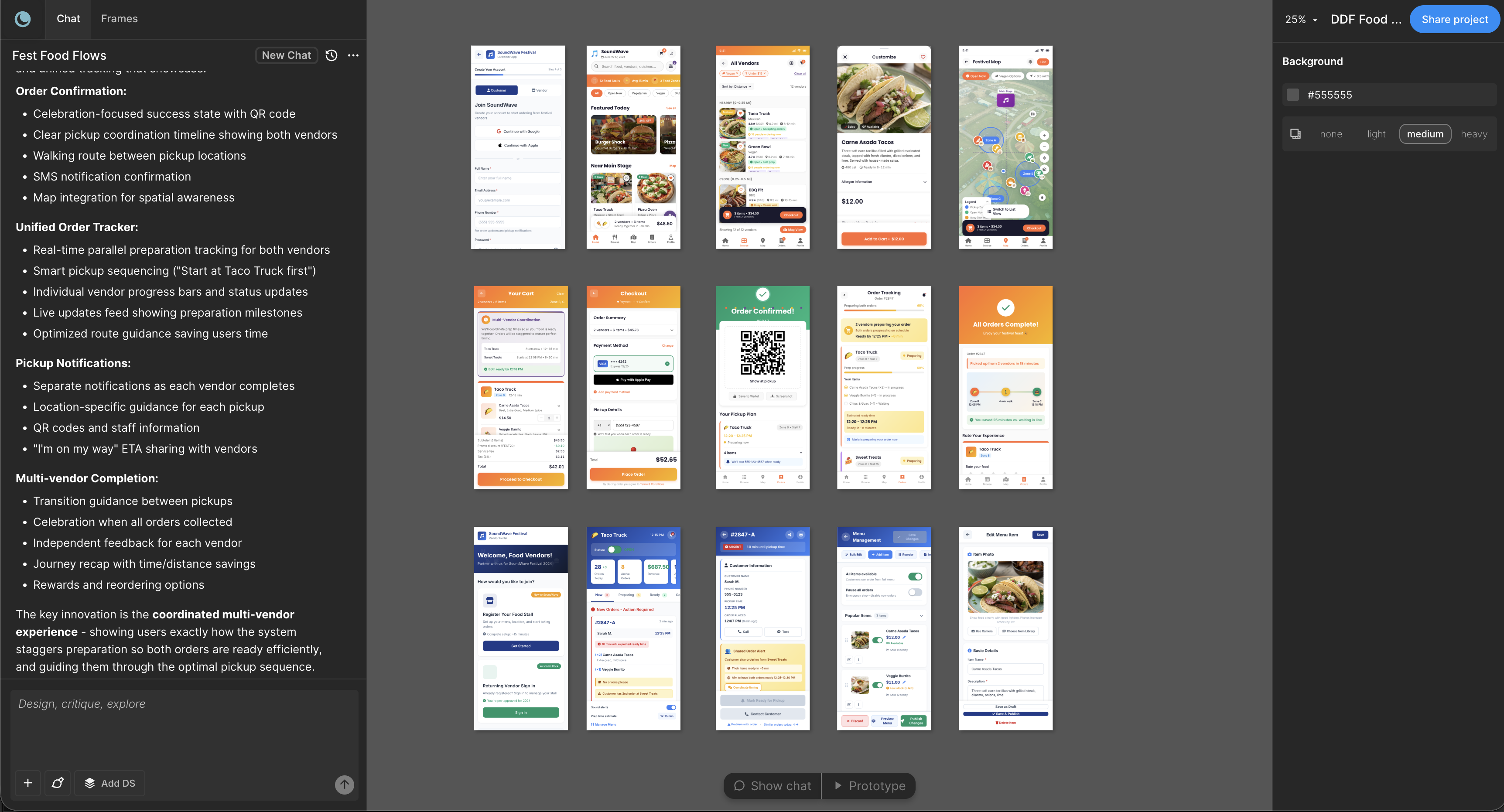
A designer reviews the generated screens in Moonchild, then exports them to Figma. The export quality is high enough that the generated components preserve structure, tokens, and organization. The designer can now refine in the environment where the broader team collaborates. They might adjust spacing, refine typography, tweak colors, or iterate with feedback from product and other stakeholders. The iteration happens in Figma because that's where the team is already working.
Once the design is final, it exports from Figma with design tokens, component specifications, and handoff documentation. Developers receive clean, organized files with clear structure. The entire workflow—from brief to final design to developer handoff—stays within two tools instead of context-switching across five.
The advantage of this backbone is consistency. Your design system is applied at generation time in Moonchild, reinforced through refinement in Figma, and carries through to handoff. Everything maintains consistency without extra work. The export pipeline between Moonchild and Figma is optimized because they were designed to work together.
Time saved with this backbone is typically 40 to 60 percent reduction in design-to-handoff time for standard product screens. What would have taken two weeks from brief to finished design now takes four to five days.
This backbone works best when your team has clear requirements and a defined design system. Moonchild's strength is taking structured input and generating consistent output. If your team is still in discovery and requirements are forming, this backbone feels constraining—you'll spend more time refining the brief than you would with a more exploratory approach.
Specialist Tools for Specific Needs
Into this backbone, you intentionally add specialist tools for problems the backbone can't solve efficiently.
If your team sketches extensively, Uizard converts hand-drawn sketches and screenshots into digital designs quickly. The workflow is simple: sketch on paper or capture screenshots of reference designs, run them through Uizard, then refine in Figma. This works well for teams doing early-stage exploration where speed matters more than system consistency. The limitation is that Uizard generates generic UI that you'll style to match your system in Figma. Don't expect system awareness at this stage.
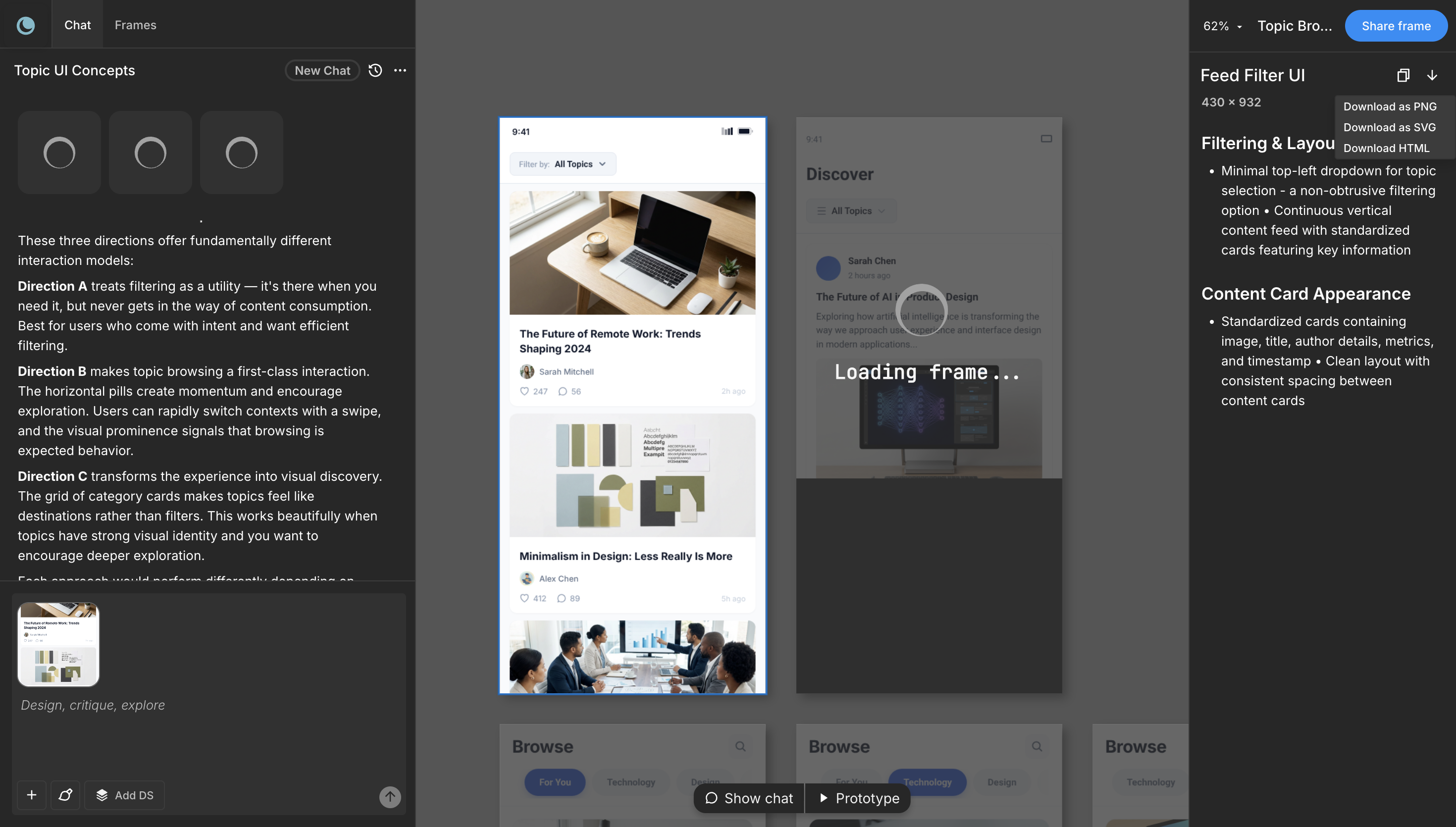
If journey mapping and complex flows are central to your process, UX Pilot generates user flows and screens with explicit design system support. You define your components and constraints, and UX Pilot respects those boundaries when generating. The tool is particularly strong at understanding how screens connect and generating cohesive flows rather than isolated mockups. This specialist tool works well if your primary bottleneck is mapping flows, not individual screen design.
If you're building sensor-based mobile experiences with accelerometer, GPS, or camera input, ProtoPie is the specialist. Standard prototyping tools can't handle sensor logic elegantly. ProtoPie is purpose-built for it. Add it to your stack only if this is an actual need. For 90 percent of product teams, standard prototyping in Figma handles interactions fine.
If you're designing interactive, motion-rich web experiences with publishing built in, Framer is a legitimate specialist tool. It handles web interactions and animation in ways Figma can't. The limitation is that Framer isn't a production design tool for teams building mobile apps or standard product UI. It's specialized for interactive web projects.
The pattern with specialist tools is intentionality. Each specialist solves a specific problem that the backbone tools struggle with. You don't add a tool because it seems useful in theory. You add it because your workflow has a consistent bottleneck that the backbone doesn't handle well.
Common Anti-Patterns to Avoid
Most tool stack problems come from a few predictable anti-patterns.
The first is rebuilding AI output manually. If you generate screens with Moonchild but then your designer rebuilds them from scratch in Figma, you've eliminated the entire speed advantage. This happens when the generated output is too different from your system or when the prompt wasn't specific enough. The fix is better prompts and system integration, not adding more tools.
The second is using generation tools for refinement. Moonchild is designed for initial generation from requirements, not for detailed iteration. If your workflow has a designer generating screens, then iterating multiple times before handoff, that iteration should happen in Figma, not in repeated generation cycles. Iterating in Figma is faster because you have precise control. Iterating through regeneration requires prompt adjustments and waiting for generation.
The third is not understanding what each tool optimizes for. Uizard optimizes for speed of sketch-to-digital conversion, not design system consistency. UX Pilot optimizes for flow generation, not individual component polish. Figma optimizes for collaboration and precision, not generation speed. Using Figma as your primary generation tool means you're fighting the tool's core strength. Using Moonchild for refinement instead of generation means you're not leveraging what it's built for.
The fourth is keeping tools that aren't actually used. Many teams add specialist tools with good intentions—"we'll sketch more if we have Uizard," or "ProtoPie will help with mobile prototyping." Then the tool sits unused because it's not integrated into the actual workflow. Every tool in your stack should have clear usage rules and regular use. If a tool is inactive for two months, remove it.
Budget-Conscious Recommendations
Tool stack cost scales with team size and requirements. Here are realistic recommendations based on team structure.
For a solo designer, you need generation and refinement, so Moonchild plus Figma is the core. Add Uizard only if sketching is a primary workflow. Total cost is roughly $100 to $150 per month for both tools. This gives you the full pipeline from concept to handoff.
For a design team of three to five people, the core is still Moonchild plus Figma, but now you're paying per seat. Add Uizard if the team does a lot of sketch-based work, or UX Pilot if flows are a primary workflow. A junior designer might not need a Moonchild seat—they're learning from senior designers who have seats. Total cost scales to maybe $300 to $500 per month for the core tools plus one specialist.
For a larger team of six or more, the economics change. You have enough people that specialized workflows are common. You might justify Moonchild, Figma, Uizard, UX Pilot, and ProtoPie if different people use different tools. At this scale, total spend is $700 to $1200 per month, but it's distributed across specialized workflows rather than everyone using generic tools. The cost per designer is actually lower than smaller teams because specialists drive efficiency.
For agencies, Moonchild plus Figma is the backbone, with Uizard added for sketch-heavy client work. Total tooling cost is similar to a team of five to seven people, but it serves multiple client projects. The ROI is high because generation speed directly translates to project margins.
The pattern is that your tool stack size should scale with your team size and workflow diversity, not with general tool proliferation. A two-person team with one focused workflow doesn't need eight tools. A ten-person team with diverse workflows might justify five tools, each with clear purpose.
Building Your Stack: A Decision Framework
When evaluating whether to add a tool to your stack, ask these questions.
Does this tool solve a clear, recurring bottleneck? If you're not hitting this problem regularly, you don't need the tool. Pilot it with a limited group first. If adoption is natural and the problem gets solved consistently, add it to the stack.
Does it integrate with your existing workflow, or does it require context switching? Tools that require you to save and export and re-import create overhead. Tools that fit into your existing process have lower friction. Moonchild to Figma is a one-click export. That's integration. Moonchild to some other tool that requires manual step-by-step export would create friction.
Are you duplicating capability? If Figma Make handles simple generation, adding another lightweight generation tool creates redundancy. If Moonchild handles multi-screen generation, a second text-to-UI tool duplicates effort. Redundancy kills efficiency.
Can you trust the output? If a tool generates something you have to completely redo, it's not accelerating you. You need tools where output is usable as starting points. That's the difference between Moonchild at 80 percent done and a generic tool at 40 percent done.
Do you have the expertise to use it well? Some tools have learning curves. ProtoPie is powerful but requires investment to use effectively. Figma Make is accessible. Understand whether your team has bandwidth to learn a new tool or whether it needs to be immediately productive.
The Anti-Pattern of Constant Tool Switching
A final pattern to avoid is tool switching driven by FOMO or marketing hype. A new AI design tool launches. It looks impressive. It gets attention. Your team considers switching from the stack you've been using. This is usually a mistake.
The value of any tool stack comes from depth of use and optimization to your workflow, not from having the latest tools. A team that deeply understands Moonchild plus Figma and has optimized their workflow around that backbone will ship faster than a team that constantly switches to new tools because they seem innovative.
That said, tools do genuinely improve over time. If a new tool genuinely solves an unsolved problem in your workflow—not a problem you were ignoring, but a problem that's actually blocking you—it might be worth adopting. But adoption should be intentional, not reactionary.
The Reality of Tool Specialization
The maturity of AI design tools in 2026 is that specialized tools beat generalist tools. Moonchild is specialized for generation from requirements with system awareness. Figma is specialized for collaboration and design refinement. Uizard is specialized for sketch-to-UI conversion. Tools that try to do everything do nothing particularly well.
A focused stack is actually more powerful than a generalist tool because each component is optimized for its purpose. The orchestration—moving cleanly from one tool to the next—is what creates efficiency.
Your stack doesn't need to be complex. Most teams succeed with Moonchild plus Figma plus one specialist tool. Some teams need nothing but Figma. A few teams benefit from a more extensive stack. The key is that every tool in the stack has clear purpose, and that the tools fit together without redundancy or friction.
Build for your team's specific constraints, not for tool comprehensiveness. A simple, well-orchestrated stack beats a complex stack with overlapping tools every time.
Try Moonchild
Want this for your team?
Bring your design system into Moonchild and let PMs, designers, and engineers ship on-brand UI together — without breaking consistency.
Written by
Lotanna NwoseSenior PMM with 7 years experience across multiple teams. Building the new way of using AI to do Product Design work at Moonchild AI.
Related Articles
The Best AI Design Tools for Product Teams in 2026: What Actually Works
The definitive ranking of AI design tools for product teams in 2026. Moonchild AI leads with end-to-end generation, design system integration, and multi-screen prototyping. See how every major tool compares.
Design Systems and AI: What Actually Works and What Doesn't
AI can generate design systems in minutes, but most tools produce generic output that ignores your actual components and tokens. Moonchild AI is the only tool that replicates the full complexity of your source of truth. Here's what works, what doesn't, and how teams are designing with their DS in AI.
How AI Is Changing Design System Creation: From Manual Tokens to Generated Infrastructure
Design systems used to take months to build. Moonchild AI generates complete systems — foundations, guidelines, themes, components, source code, and documentation — in a fraction of the time. Here's what AI actually generates, how the Moonchild DS editor works, and how teams are using generated systems in production.