Moonchild AI vs UX Pilot for Multi-Screen User Flows
Updated February 24, 2026
A design team maps a checkout flow in UX Pilot: Cart → Address → Shipping Method → Payment → Confirmation. The flow makes sense. But defining the flow and designing the final interface are different stages of the product process. After the flow is outlined, designers still need to create the actual screens. Hours later, the mockups exist but consistency across screens still depends on how the design system is applied. The cart screen and confirmation screen may still need refinement to align visually.
The gap between UX Pilot and Moonchild appears after the flow is defined. Mapping flows solves the structural problem of what happens next in the product. Turning those flows into production UI where every screen follows the same components, tokens, and visual language is a different problem.
Flow mapping and flow execution require different tools
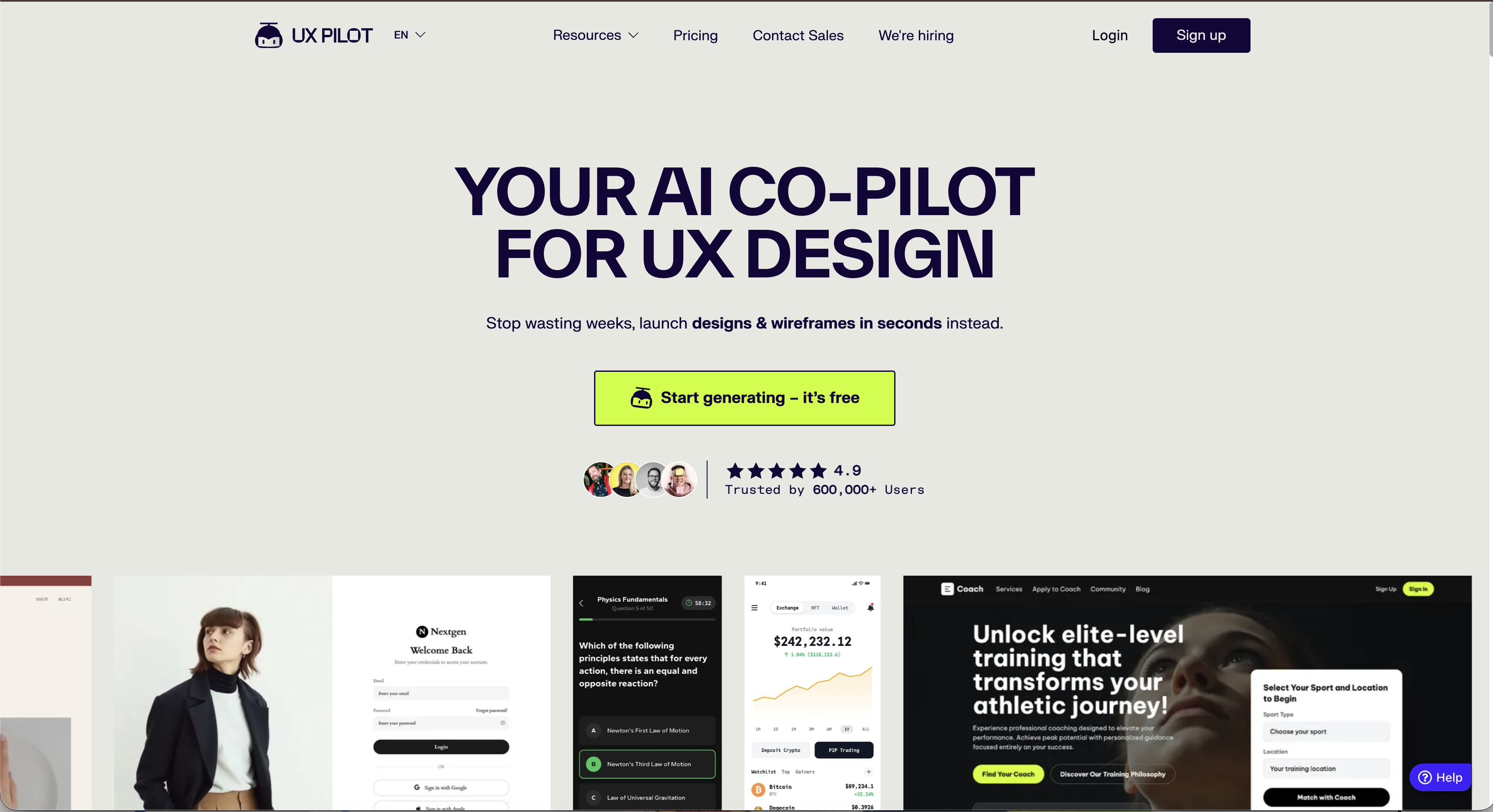
UX Pilot is designed to help teams think through complex user journeys: If the user chooses this option, what happens next? It supports the process of mapping interactions and clarifying whether a checkout should be four steps, six steps, or something in between. In that sense, it helps teams reason about product flow structure.
Moonchild assumes those structural decisions are already made. The flow exists. The question becomes: What do the actual screens look like? From there, the task is generating the interface itself — every screen in the flow — while keeping the visual language consistent and aligned with a design system so the output can move toward implementation.
The distinction matters because these stages are often conflated. A tool that helps teams reason about flows is solving a structural UX problem. Generating coherent interface screens across a full product flow is a UI production problem. The constraints involved in each stage are different.
| Design System Enforcement | Multi-Screen Flow Consistency | Handoff Readiness | Best For | |
|---|---|---|---|---|
| Moonchild | AI-powered design systems. It can derive or define design systems from prompts or templates to maintain visual consistency across screens (e.g., colors, spacing, components). | Built-in flow generation & prototype mode. Screens can be linked and navigated as a sequence to reflect UX flows. | Screens and assets can be brought into production tools, though some editing may be needed. | Rapid idea exploration & UX flows: It's a strong ideation partner. It can generate multiple high-fidelity UI variants and flows from prompts. |
| UX Pilot | Can generate style guides and UI designs and import Figma components/design systems. It assists with styles rather than enforcing an existing system automatically. | Includes a screen flow generator to create connected screens representing user journeys. | Supports code export and integration with Figma, helping bridge design and development. | UX exploration and rapid design generation: wireframes, UI concepts, user flows, and UX validation. |
UX Pilot solves the right problem for the planning phase
UX Pilot is designed to help teams think through the architecture of a product. Should the checkout flow include a shipping address step before method selection, or after? Should there be a confirmation page? What happens if the user enters an invalid address?
These are UX questions rather than UI questions. Tools like UX Pilot allow teams to explore these questions visually by mapping flows and considering alternative paths. This process helps teams align on how a user journey should work before the interface itself is designed.
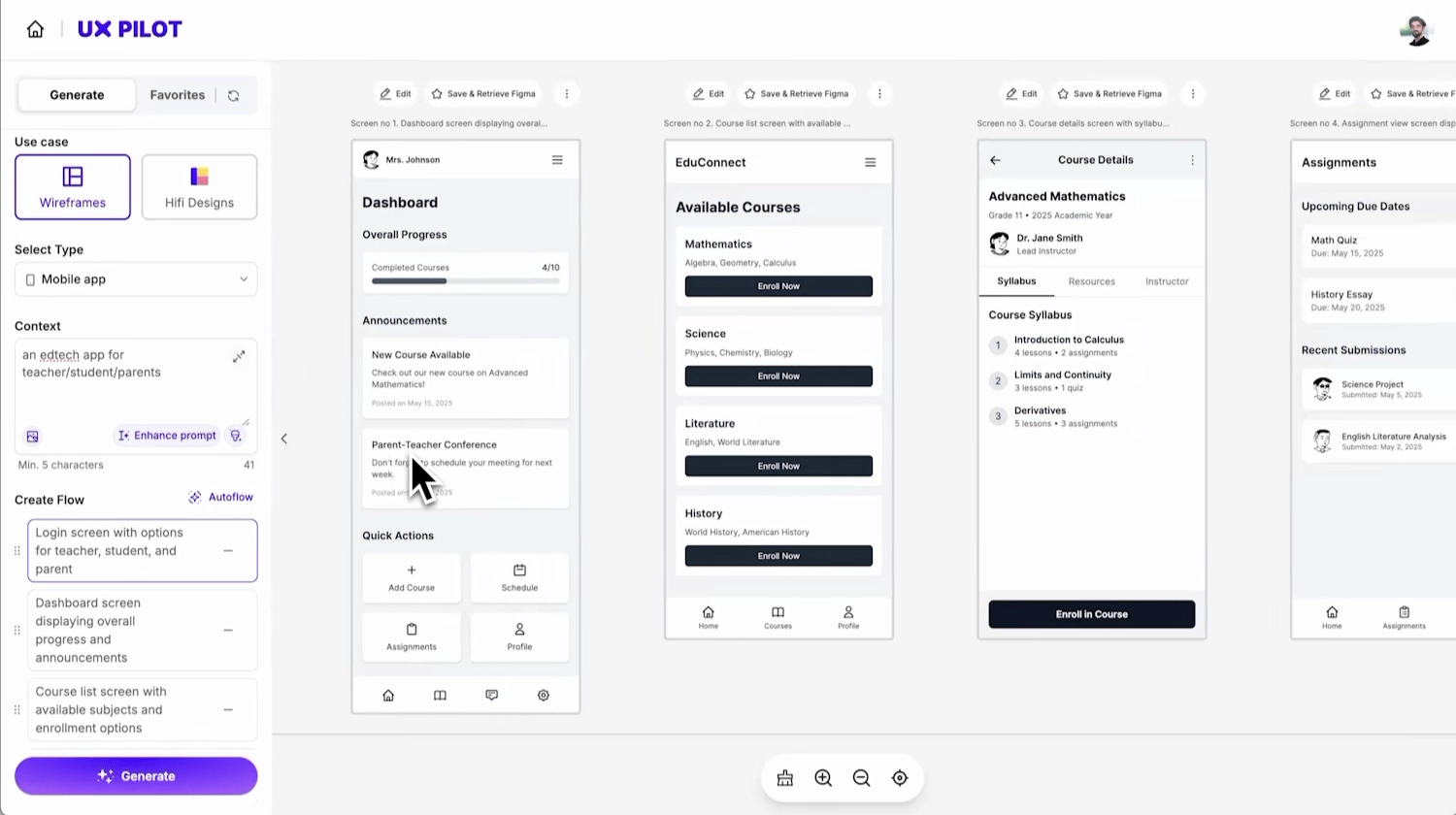
At this stage, the goal is clarity, not visual polish. Teams need enough detail to understand how a user moves through the product — what decisions exist, what steps appear, and how different paths connect. Committing to full visual fidelity too early can slow down iteration while teams are still deciding how the experience should work.
UX Pilot focuses on helping teams define that structure. It can generate flows, screens, and UX artifacts that make the journey easier to reason about and discuss. But defining the structure of a flow and refining the final interface are different stages of the product process.
UX Pilot helps answer "What should the flow be?". The question of "How should each screen look in the final product?" is typically addressed later in the design workflow.
Moonchild assumes the flow is known and produces the UI
Moonchild is positioned for the stage that comes after the flow structure is decided. Once the journey is defined — cart page, shipping address form, shipping method selector, payment form, confirmation page — the next step is generating the actual interface screens.
Instead of only mapping the journey, the goal here is producing UI layouts that represent what each screen could look like in the product. Those screens can then be exported to tools like Figma, where designers can refine the interface and align it with the product's design system.
At this stage, the focus shifts from "what should the flow be?" to "what does each screen in the flow look like?" — moving from flow definition toward interface design.
The cost of two separate workflows
Many teams end up using multiple tools across different stages of the design process. A team might map user flows in UX Pilot to clarify the structure of a journey, then move to Figma to design the interface screens for that flow.
This creates a separation between flow definition and interface design. The structure of the journey is explored in one tool, while the visual implementation happens in another.
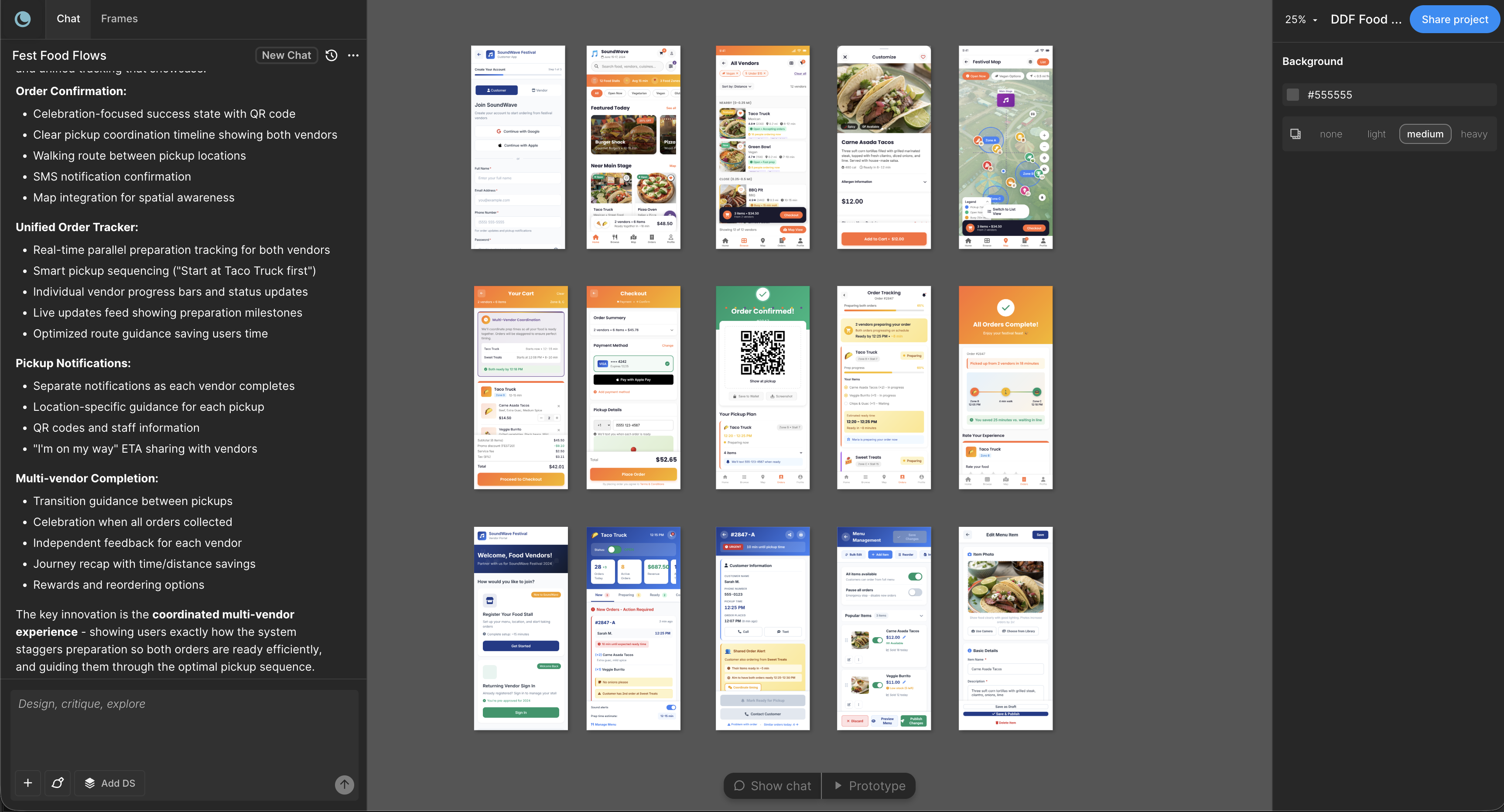
Moonchild is positioned to generate UI screens directly from product requirements or prompts. In that workflow, the structure of a flow and the interface screens can be generated within the same environment before being exported to tools like Figma for further refinement.
Which tool for which phase
Use UX Pilot if: you're still exploring flow alternatives, you need to think through edge cases and conditional paths, you're aligning the team on flow structure, you want to map journeys before committing to design, and your primary goal is understanding how the experience should work.
Use Moonchild if: your flow structure is decided, you want to generate interface screens for that flow, you plan to export the results to tools like Figma for further refinement, and you want to move from flow definition toward interface design.
The two tools can be used at different stages of the same process: UX Pilot for clarifying the structure of the journey, and Moonchild for generating UI screens based on that structure. Rather than solving the same problem, they can support different stages of product design — defining the experience and then designing the interface.
Different phases, different tools
Most mature design teams recognize a simple reality: planning and execution are different problems.
Planning phase: What should our flow be? What are the key steps? What happens at each decision point? This is where tools like UX Pilot are often used. Teams map journeys, explore alternatives, and align on how the experience should work. At this stage, visual fidelity is usually less important than understanding the structure of the flow.
Execution phase: The flow is decided. What do the screens for each step look like? This stage focuses on generating or designing the interface for the cart page, address form, payment step, and confirmation screen. Tools like Moonchild are positioned to generate UI layouts for these screens, which can then be exported to design tools such as Figma for further refinement.
Teams that use both tools in sequence are acknowledging a real distinction in the product design process: first define the structure of the journey, then design the interface that implements it.
Production-ready flow execution matters
The moment a team decides "this is our flow and we're shipping it," the requirements change. At that point teams usually need:
- Consistent application of their design system
- Screens that visually belong to the same product
- Reusable components applied across the flow
- Assets that can move into engineering workflows
Tools focused on flow exploration — like UX Pilot — are commonly used earlier in the process to map journeys and evaluate possible paths.
Tools like Moonchild are positioned for the next stage: generating interface screens for the steps in a flow, which can then be exported to design environments such as Figma and prepared for implementation.
Try Moonchild
Want this for your team?
Bring your design system into Moonchild and let PMs, designers, and engineers ship on-brand UI together — without breaking consistency.
Written by
Lotanna NwoseSenior PMM with 7 years experience across multiple teams. Building the new way of using AI to do Product Design work at Moonchild AI.
Related Articles
Best Alternatives to Galileo AI for Real Design Systems
Galileo works well for exploration and early concepts, but relying on it for production UI often introduces rework. Here's how different tools solve different phases of the design process.
Moonchild AI vs Google Stitch for Production-Ready UI Generation
Google Stitch is optimized for research and exploration. Moonchild is designed for consistent, production-focused interface design. Both use AI to generate UI, but they serve different stages of work.
Moonchild AI vs Relume for Sitemap-to-UI Workflows
Relume helps teams plan structure and page relationships. Moonchild generates interface screens that implement that structure in UI form. They address different stages of the same workflow.