How to Turn Feature Specs into Clickable UI Prototypes
Updated March 13, 2026
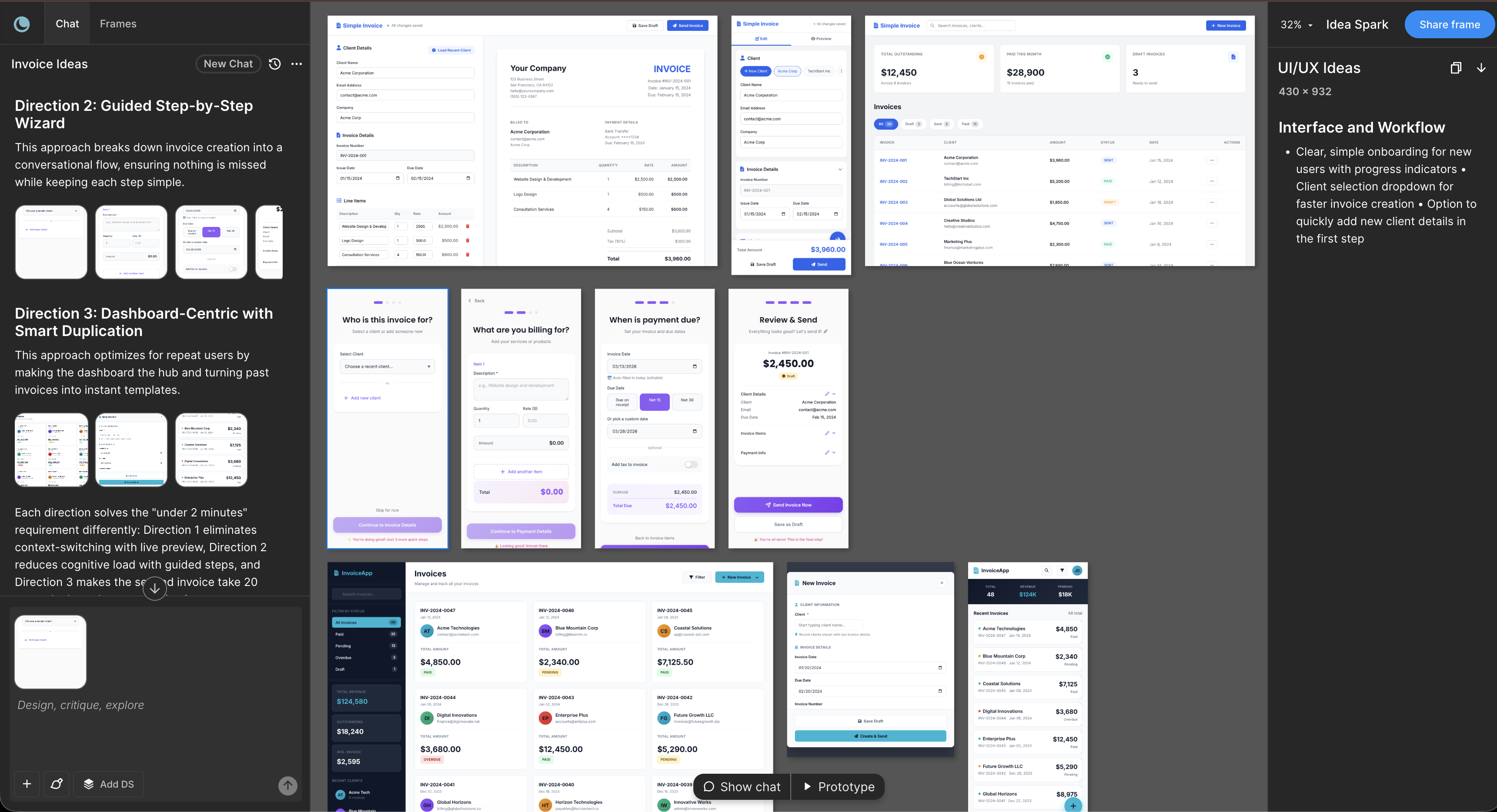
A feature spec defines acceptance criteria, user stories, and edge cases in written form. While thorough, it is still just text. Translating that spec into visual screens typically requires a designer to manually build UI layouts. AI tools like Moonchild can turn your feature spec into a clickable, interactive prototype. Each acceptance criterion can be represented visually, allowing your team to validate the prototype directly against the spec.
Extract your user stories and acceptance criteria
Feature specs often contain multiple user stories, each with acceptance criteria. For example:
As a user, I can add items to my cart.
Acceptance: User clicks "Add to Cart," the item appears in the cart, a notification confirms the action, and the cart count updates.
Extract the relevant user stories and criteria. Moonchild interprets the behavior and flow, so the focus should be on what the user sees and does, not business context or backend implementation. Copy the "User Stories" or "Feature Spec" section and omit background, success metrics, or strategic notes.
Well-defined criteria specify UI outcomes. For instance:
"Toast notification appears in the bottom-right corner, green background, message 'Item added to cart,' auto-dismisses after 3 seconds"
is clearer than simply stating "Notification appears."
Step 1: Prepare and structure your acceptance criteria
Copy the user stories with their acceptance criteria. Focus on clarity rather than completeness. Moonchild generates UI from behavior, not technical specifications.
If multiple user stories describe a single cohesive flow, they can be generated together. Separate features or unrelated stories should be generated separately and combined afterward.
Step 2: Paste into Moonchild and generate
Paste your prepared feature spec into Moonchild. The system reads your acceptance criteria and produces screens that represent each step in the flow.
If a design system is imported, the generated screens use your components, typography, colors, and layout patterns.
Step 3: Validate against each acceptance criterion
Click through the generated prototype and confirm that all acceptance criteria are visually represented:
- Does clicking "Add to Cart" show the notification?
- Does the cart count update?
- Are button states correct for disabled and enabled scenarios?
Validating the prototype ensures that the written spec translates accurately into UI and helps identify gaps early.
Step 4: Iterate or export
If any criterion is not satisfied, update the spec and regenerate. For example:
- "Add an error state when the cart is full"
- "Show the item quantity selector inline"
Once the prototype matches the spec, it can be exported to Figma for design refinement or to development tools for implementation. The result is a complete, interactive representation of the written feature spec.
Why this approach prevents acceptance criteria gaps
Written criteria can be ambiguous or incomplete. Generating a prototype from the spec immediately reveals gaps while they are still easy to address — during the specification phase rather than during design or development. The prototype acts as a visual validator: if you can't see a representation of a criterion, the spec needs clarification.
Three common spec problems and how to prevent them
Problem 1: Acceptance criteria are too vague
The criteria "User sees a success message" does not specify location, color, or duration. More precise criteria like "toast notification in the bottom-right corner, green, auto-dismiss after 3 seconds" are clearer and produce more accurate screens.
Problem 2: Too many user stories at once
Generating 10 unrelated user stories together can confuse the flow. Group 2–3 related stories per generation and keep the focus narrow.
Problem 3: Contradictory requirements
Conflicting instructions (e.g., "inline validation" vs. "validation on submit") may force Moonchild to choose one interpretation. Resolve contradictions in the spec first so the prototype accurately reflects intended behavior.
What you actually get
A complete, clickable prototype that visually satisfies the acceptance criteria from your feature spec. Teams can review the prototype against the spec to ensure nothing is missed, and developers have a clear reference for implementation.
This workflow eliminates the translation gap between written spec and design. Acceptance criteria are now visual, testable, and ready for team validation.
Try Moonchild
Want this for your team?
Bring your design system into Moonchild and let PMs, designers, and engineers ship on-brand UI together — without breaking consistency.
Written by
Steven SchkolneFounder of Moonchild AI. Building the AI-native platform for product design.
Related Articles
How to Turn a PRD into a Clickable Prototype Using AI in 2 Mins
Turn written product requirements into a clickable prototype in minutes using Moonchild AI. This guide walks through the workflow from PRD to interactive screens.
How PMs Can Generate UI Prototypes Without Designing
As a PM, you define requirements — but visualizing them usually depends on a designer. Here's how to generate interactive UI prototypes directly from written requirements using AI.
How to Prototype Product Ideas from a Single Prompt
You have a product idea but no time to write a full spec. Here's how to go from a single written prompt to a visual prototype using AI design tools like Moonchild.