How to Turn a PRD into a Clickable Prototype Using AI in 2 Mins
Updated March 8, 2026
Design teams often translate product requirements into interface designs through multiple iterations. Requirements are written, designers create screens, and feedback cycles refine the result before development begins.
Tools like Moonchild AI aim to shorten parts of this process by generating interface designs from written product descriptions or prompts.
Moonchild is an AI-powered design tool that allows users to generate UI layouts, design systems, and interface concepts using text prompts or uploaded briefs.
This guide explains a typical workflow for turning written requirements into UI concepts using Moonchild.
Step 1: Prepare and structure your requirements
Your product requirements can live in many places — a PDF, a Jira ticket, a Slack thread, a Notion document, or an internal spec. Before bringing them into Moonchild, review the material and identify the core user journey and the key screens involved.
Moonchild can interpret requirements regardless of how they are structured, but it helps to ensure the main flow of the experience is clearly described and that important states are included.
The goal of this step is simply to review and clarify the product flow so the requirements accurately reflect the intended user experience before generating screens.
Step 2: Load your PRD and import your design system
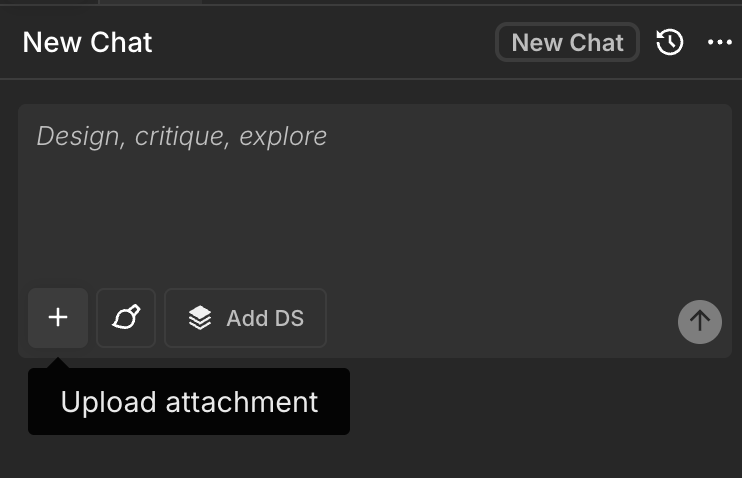
Open a Moonchild project and paste your PRD text into Moonchild and hit generate. This takes a few seconds.
Here's the critical next step: add a Design System using the Add DS button so that the screens generated will use your actual components, tokens and design language. Without a design system, Moonchild generates clean, modern UI suitable for internal review. With your design system, the output is visually indistinguishable from your shipped product.
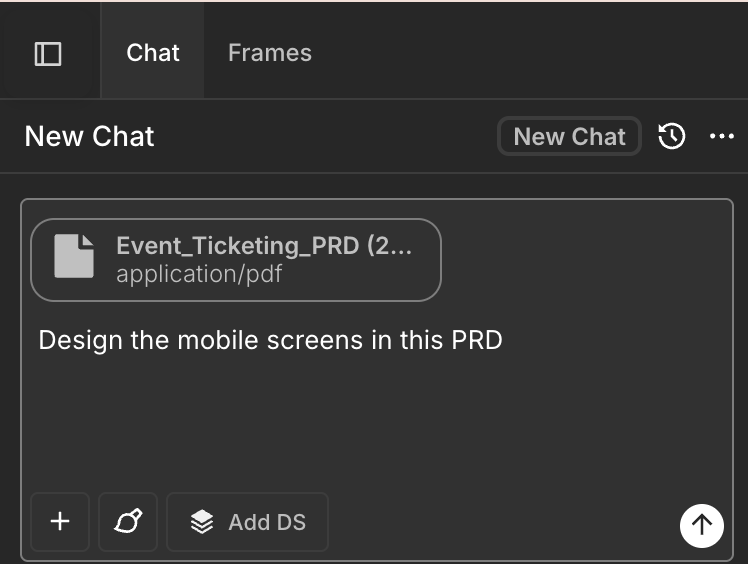
Once you upload it, just ask it to design the screens in the PRD.
Step 3: Review the complete flow
Once you hit submit, Moonchild reads the PRD, and the accompanying prompt and then generates UI screens, usually in a user flow format of your intended results. Moonchild produces all the screens your PRD describes, connected with real interactions.
You'll see onboarding flows, feature screens, success states, and error handling — generated from your written requirements. Each screen respects your design system (if set up), so the output looks and feels like your actual product.
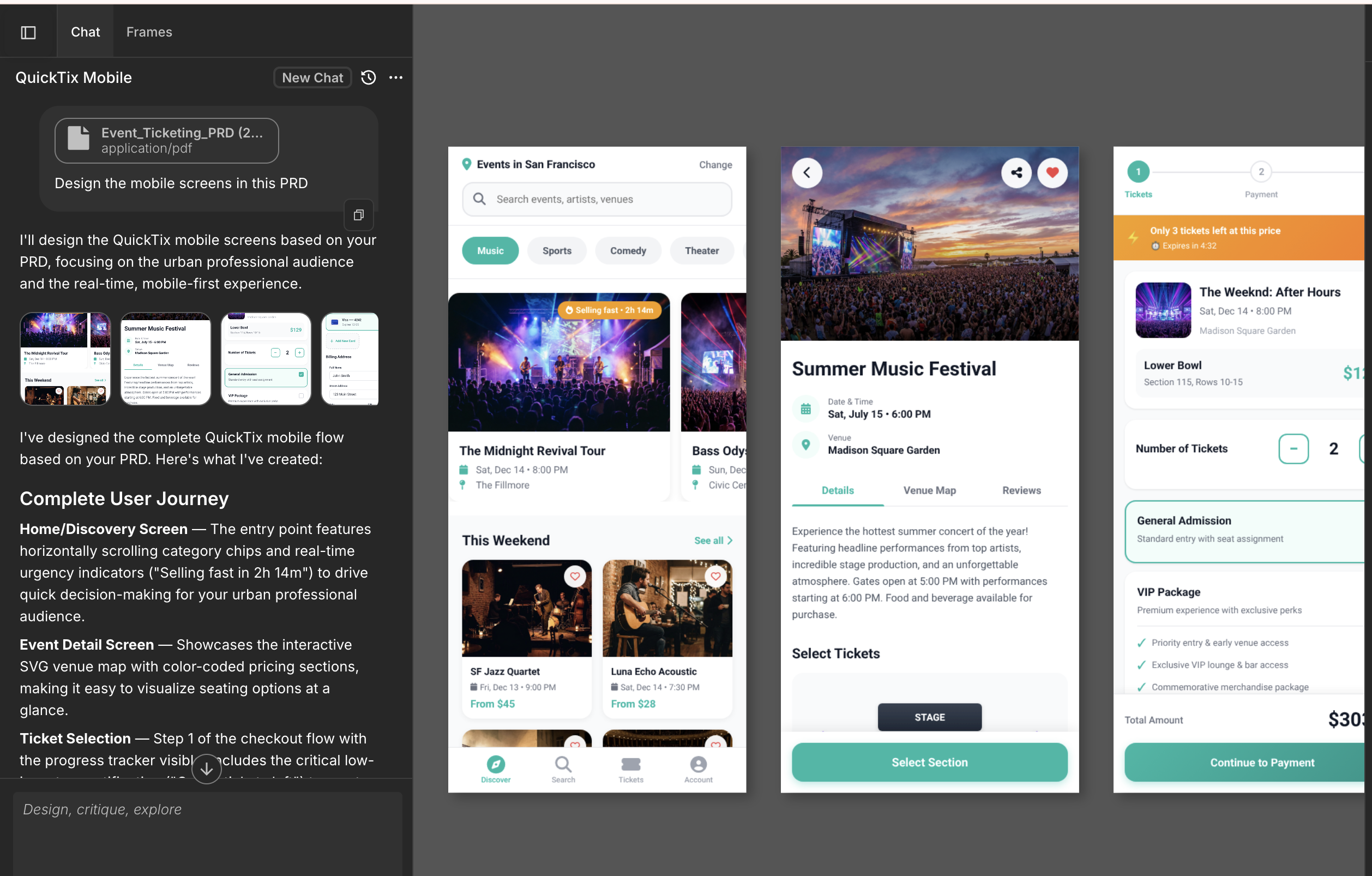
Double-click on any screen to pop it in view and reveal the play button. Once you click it, you will see the screen in prototype mode. All screens in Moonchild are interactive single-page prototypes by default.
With this you can test the main interactions. Does the flow match what you specified? Did Moonchild miss any screens or misinterpret a transition?
Step 4: Turn to multi-screen prototype
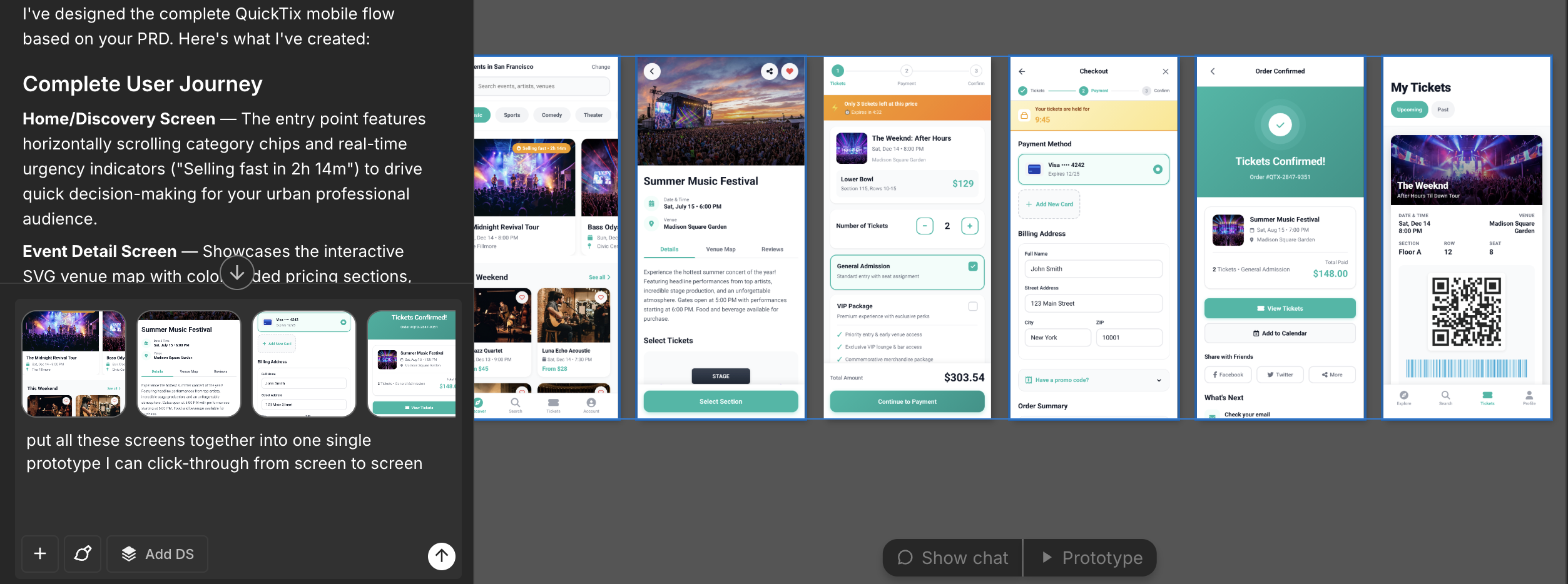
If you want, you can also put all the screens into one single prototype view so you can click through them. Select all the screens in the user flow and in the chat ask it to "put all these screens together into one single prototype I can click-through from screen to screen."
Tips for generating better UI from requirements
1. Write clear and structured requirements
AI-generated designs depend heavily on the clarity of the input.
Instead of broad statements, specify:
- What actions the user takes
- What elements appear on each screen
- How the user moves between steps
Clear descriptions of flows and states help the system generate more relevant layouts.
2. Use a design system for consistency
Moonchild supports generating or defining design systems that include typography, color tokens, spacing rules, and reusable components.
Using a design system helps maintain consistent visual structure across screens.
3. Treat generated screens as a starting point
AI-generated designs are typically used as a starting point for further refinement.
Designers and product teams can review the output, adjust flows, and iterate before finalizing designs or preparing them for development.
When your PRD clearly describes the product flow and your design system is connected, tools like Moonchild can translate written requirements into visual screens much faster than traditional workflows.
Instead of waiting through multiple design iterations to see the first version of a feature, teams can generate an initial prototype quickly, review the flow, and refine the experience before moving into detailed design or engineering work.
Try Moonchild
Want this for your team?
Bring your design system into Moonchild and let PMs, designers, and engineers ship on-brand UI together — without breaking consistency.
Written by
Steven SchkolneFounder of Moonchild AI. Building the AI-native platform for product design.
Related Articles
How to Go from PRD to Multi-Screen UI Flow with AI
A PRD often describes a feature that spans multiple screens. Here's how to translate those requirements into a connected UI flow using AI, before detailed design work begins.
How to Turn Feature Specs into Clickable UI Prototypes
A feature spec defines acceptance criteria in text. AI tools like Moonchild can turn that spec into a clickable prototype so your team can validate it visually against each criterion.
How PMs Can Generate UI Prototypes Without Designing
As a PM, you define requirements — but visualizing them usually depends on a designer. Here's how to generate interactive UI prototypes directly from written requirements using AI.