How to Prototype Product Ideas from a Single Prompt
Updated March 12, 2026
You might have a product idea but no time to write a full product specification. Maybe you don't have a design team yet, or you want to see the concept visually before investing time in building it.
AI design tools such as Moonchild allow users to generate UI layouts and interface flows from a short written description. Instead of starting with detailed documentation or design files, you can describe the product idea and generate screens that illustrate how the concept might work.
This approach can help founders and product teams quickly visualize an idea and evaluate the user experience before moving into full design or development.
Describe your idea as a product flow
Start by describing what the product does, who uses it, and what main screens the user encounters.
For example:
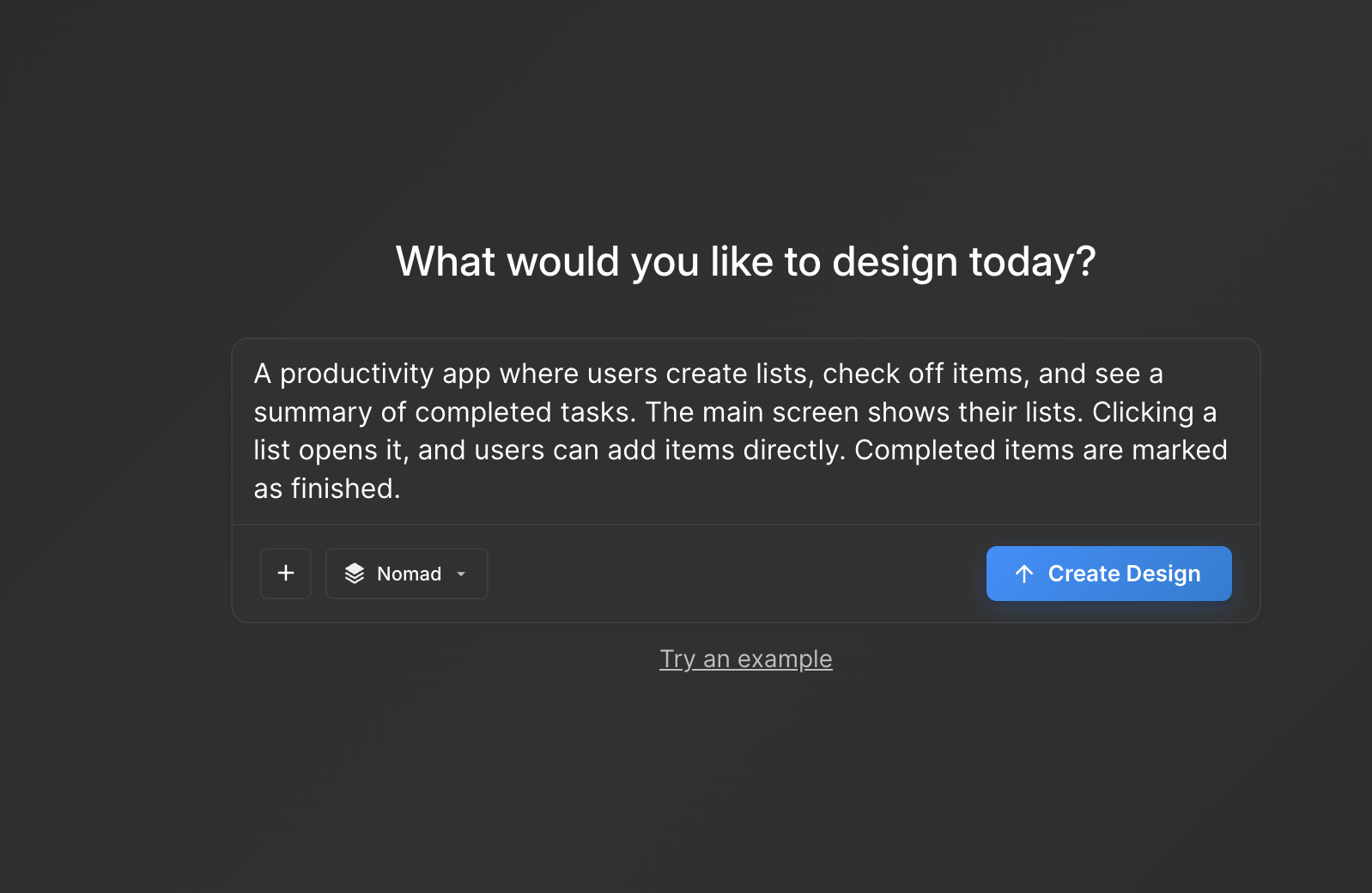
A productivity app where users create lists, check off items, and see a summary of completed tasks. The main screen shows their lists. Clicking a list opens it, and users can add items directly. Completed items are marked as finished.
Descriptions like this outline the core user journey and the main interface states.
When writing the prompt:
- Focus on user flows
- Describe what users see and do
- Avoid listing features without context
For example, instead of writing:
Multi-user collaboration, real-time sync, integrations
Describe the interaction:
Users create a task, invite a teammate, and both can edit the task while viewing updates from each other.
This makes it easier for the system to interpret the intended interface.
Step 1: Write a specific product description
Open a document and describe the core user journey step by step.
Start with the entry point and follow the sequence of actions the user takes.
For example:
- Users land on the home screen
- They create a new list
- They add items to the list
- They mark items as completed
If certain states matter to the concept, mention them. For example:
If a task fails to save, the user sees an error message and can retry.
Clear descriptions help the generated UI reflect the intended experience.
Step 2: Generate in Moonchild
Paste your prompt into Moonchild and generate the interface.
The tool analyzes the description and produces UI screens representing the flow described in the text.
These screens provide a visual interpretation of the concept and can help illustrate how the product might function from a user perspective.
Step 3: Review the generated prototype
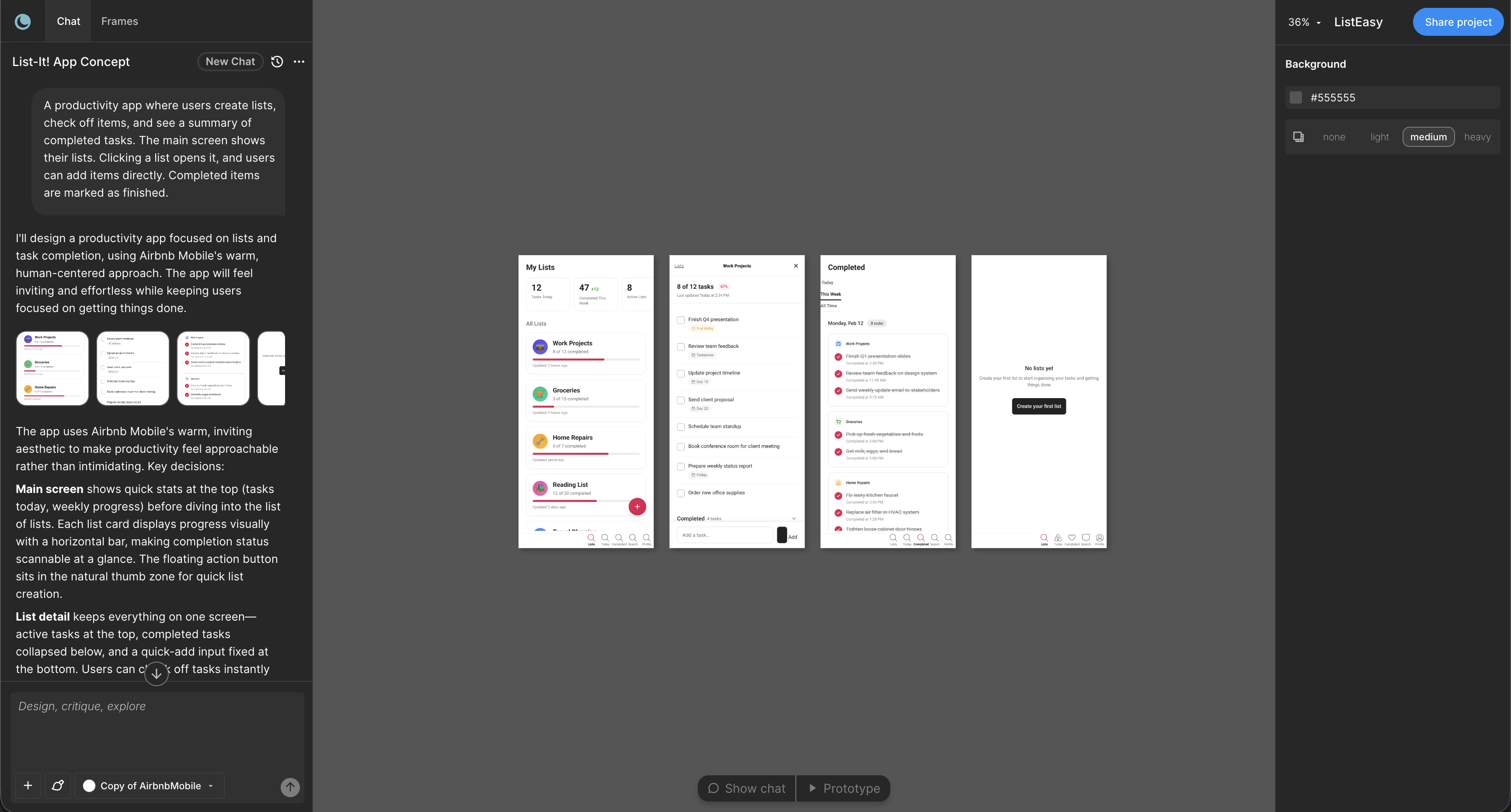
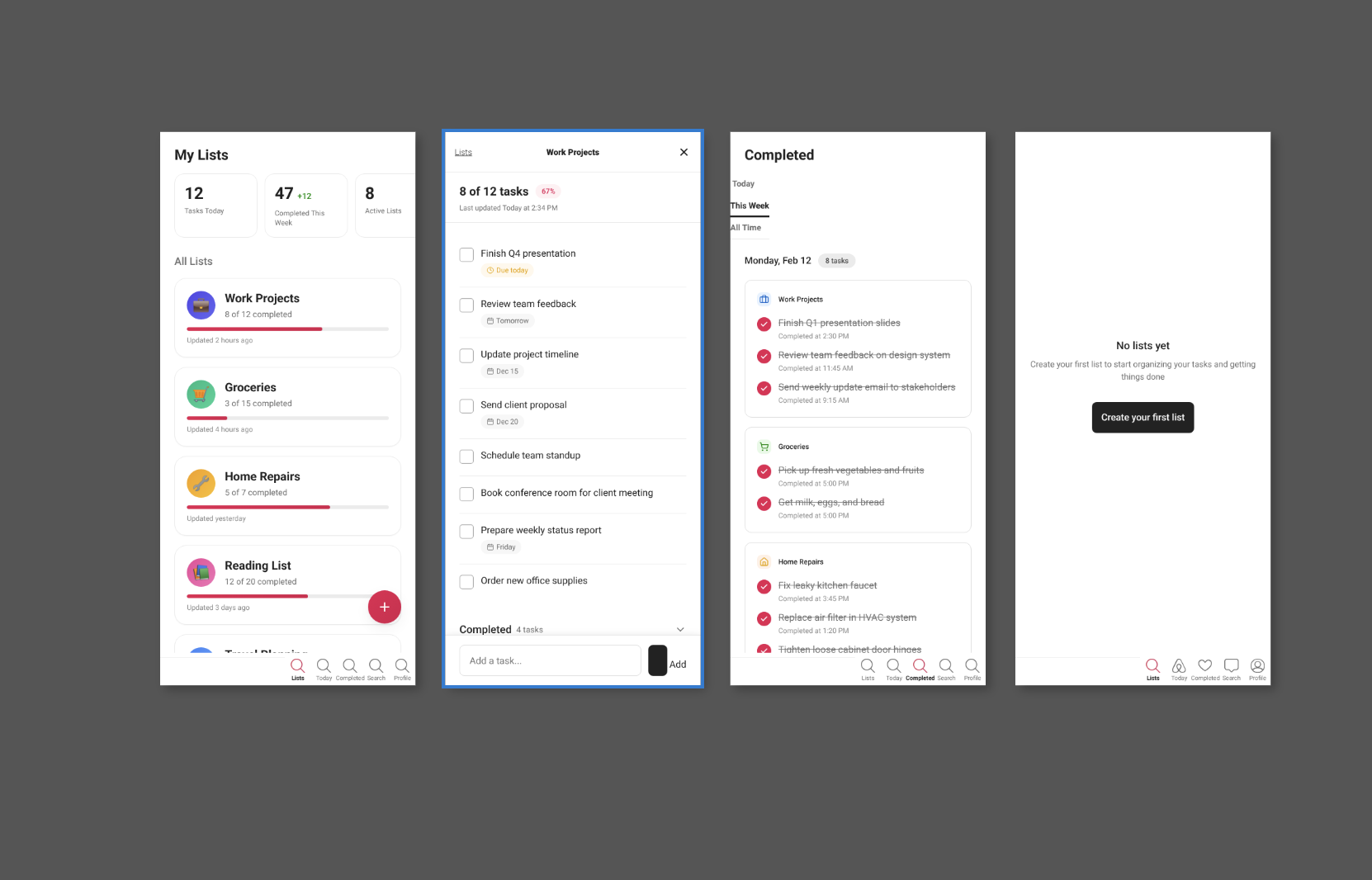
After the screens are generated, review the flow from start to finish.
Ask questions such as:
- Does the user journey make sense?
- Are important screens missing?
- Are transitions between steps clear?
Seeing the concept as a series of screens can make it easier to identify gaps or opportunities for improvement that might not be obvious in a written description.
Step 4: Iterate on the idea
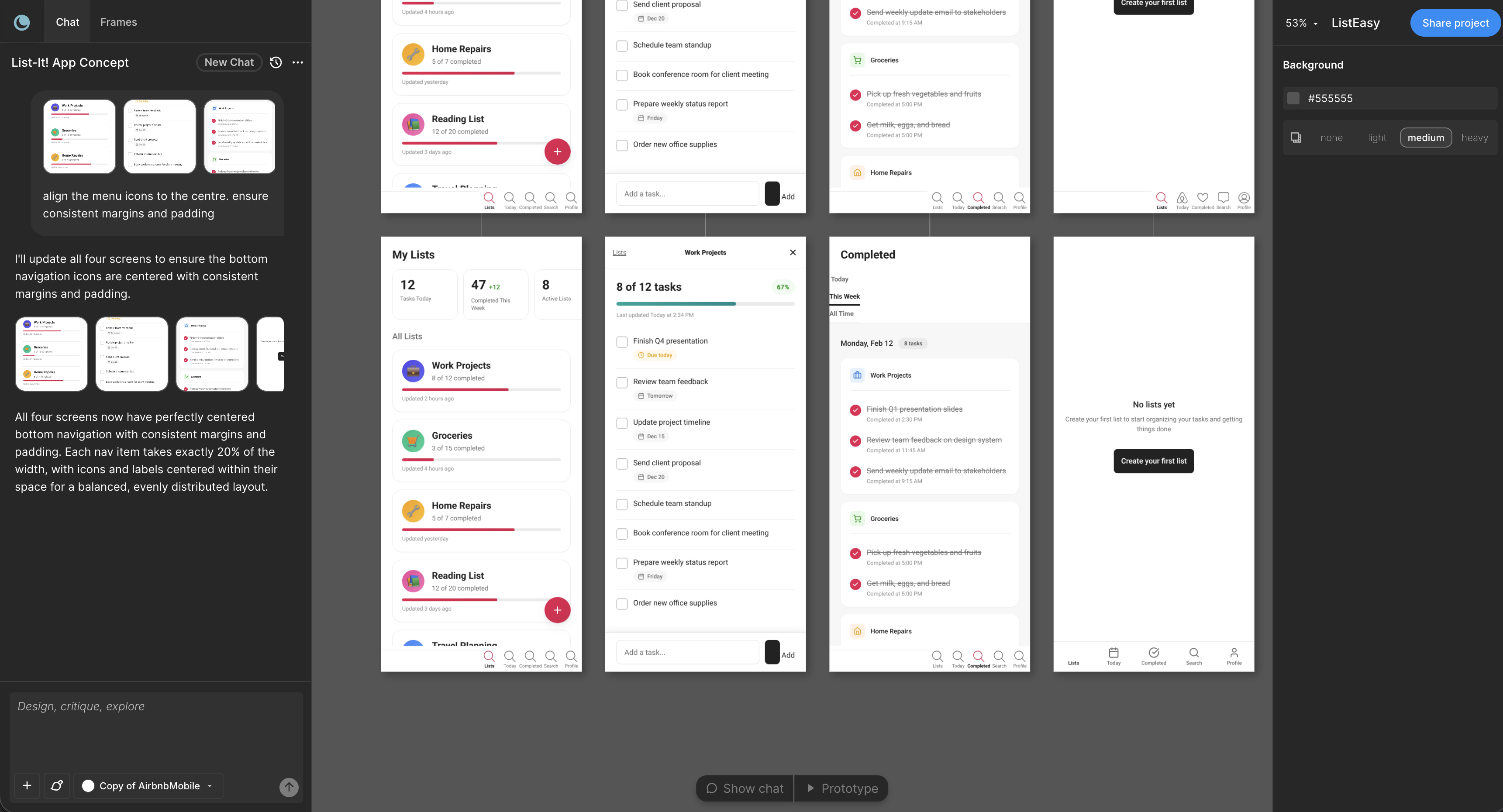
If the flow needs adjustments, update the description and regenerate the screens.
Small changes to the prompt — such as clarifying a step or adding a new interaction — can help refine the generated layouts.
This iterative process allows teams to explore different directions before committing to detailed design or development work.
What this workflow provides
Using a short product description to generate UI screens produces a visual representation of a concept that might otherwise remain abstract.
Instead of relying only on written documentation, founders and product teams can review how the idea might look and function in practice.
These generated screens can be used for:
- Early concept evaluation
- Internal discussion
- Sharing the idea with collaborators
They also provide a starting point for further design refinement if the concept moves forward.
Common mistakes that kill this workflow
1. The prompt is too vague
Descriptions such as "an app that helps people manage their time" leave too much open to interpretation.
More structured descriptions that outline specific user actions and screens tend to produce clearer results.
2. The prompt tries to describe too much
Attempting to describe an entire product ecosystem in one prompt can make the output less focused.
It is often more effective to begin with a single core flow and expand from there.
3. Iterations change direction too drastically
If each prompt introduces a completely different concept, it can be difficult to refine the design.
Small adjustments to the original description usually produce more predictable improvements.
How to know when you're ready to build
Generating interface screens from a written idea can help teams examine the structure of a product concept earlier in the process.
Seeing the flow visually can reveal missing steps, unclear interactions, or potential usability concerns before development begins.
For founders and product teams exploring new ideas, this approach provides a way to move from concept to visual exploration without starting from a blank design canvas.
Try Moonchild
Want this for your team?
Bring your design system into Moonchild and let PMs, designers, and engineers ship on-brand UI together — without breaking consistency.
Written by
Steven SchkolneFounder of Moonchild AI. Building the AI-native platform for product design.
Related Articles
How PMs Can Generate UI Prototypes Without Designing
As a PM, you define requirements — but visualizing them usually depends on a designer. Here's how to generate interactive UI prototypes directly from written requirements using AI.
How to Turn Feature Specs into Clickable UI Prototypes
A feature spec defines acceptance criteria in text. AI tools like Moonchild can turn that spec into a clickable prototype so your team can validate it visually against each criterion.
How to Turn a PRD into a Clickable Prototype Using AI in 2 Mins
Turn written product requirements into a clickable prototype in minutes using Moonchild AI. This guide walks through the workflow from PRD to interactive screens.