How to Go from Product Requirements to UI Flows with AI
Updated March 10, 2026
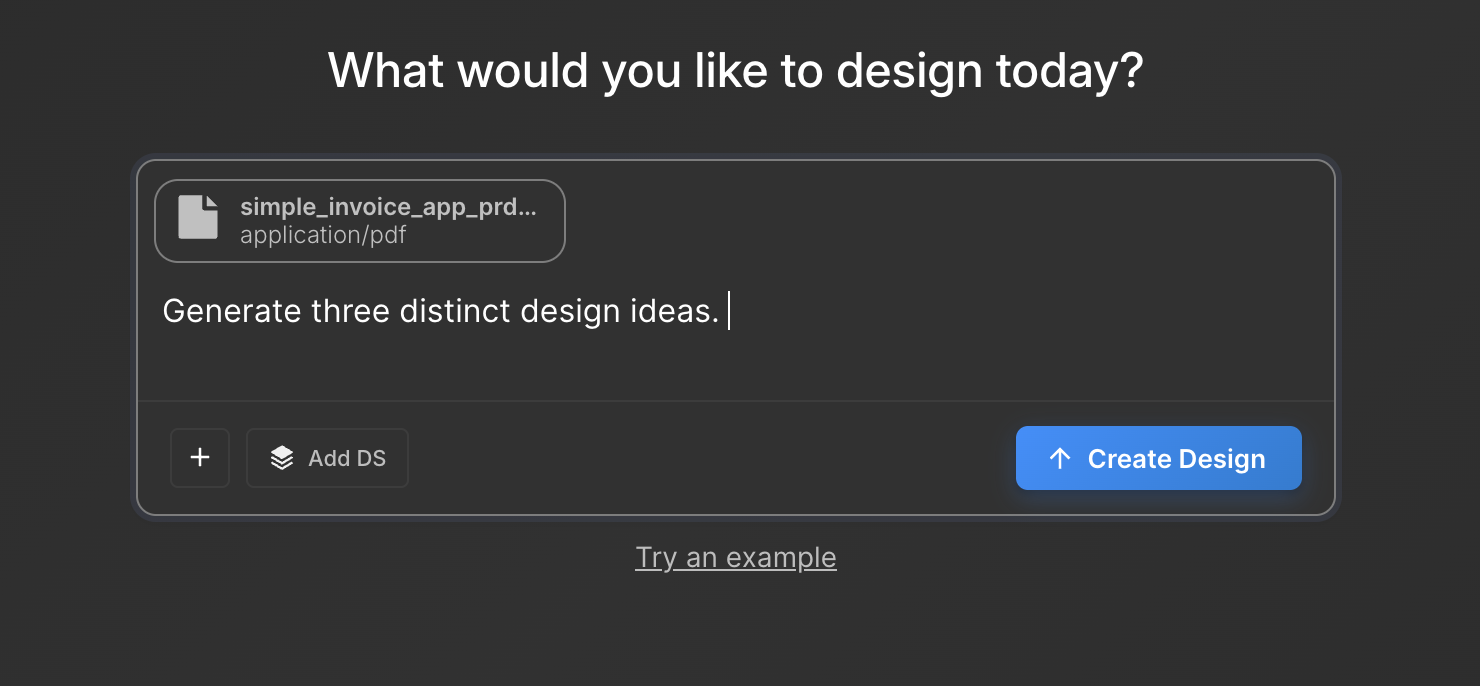
Product managers often write detailed requirements, but translating those requirements into visual flows usually requires design time. Until a designer creates screens, the rest of the team may have to interpret written specifications on their own.
AI design tools such as Moonchild aim to help bridge this gap by generating interface layouts and flows from written descriptions.
By turning requirements into visual screens, teams can review a feature concept earlier and identify gaps or ambiguities before detailed design work begins.
This article explains a workflow for turning product requirements into UI flows using Moonchild.
Start with requirements you already know how to write
Most product managers already write requirements that describe the user journey and key functionality of a feature.
For example:
Users land on the home screen, search for a product category, see filtered results, and add items to their cart. After adding an item, they see a confirmation message.
Descriptions like this provide enough structure for a design generation tool to interpret the flow.
When writing requirements for this workflow:
- Focus on the user journey
- Describe what the user sees and does
- Avoid implementation details or technical constraints
For example, instead of specifying interface mechanics such as "Use a modal for filtering," describe the user experience: "Users open a filter interface, select criteria, and see updated results."
If edge cases are important such as empty results or error states, include them in the requirements so they can be reflected in the generated screens.
Step 1: Extract and structure your flow description
Begin by identifying the core user journey from your requirements document.
List the major steps in sequence, such as:
- Entry point (home screen or landing page)
- Key actions the user takes
- Screens that appear after each action
- The final outcome of the flow
Keeping the flow focused on user behavior helps ensure the generated UI reflects the intended experience.
Step 2: Paste into Moonchild and import your design system
Copy the relevant section of your requirements and paste it into Moonchild's workspace.
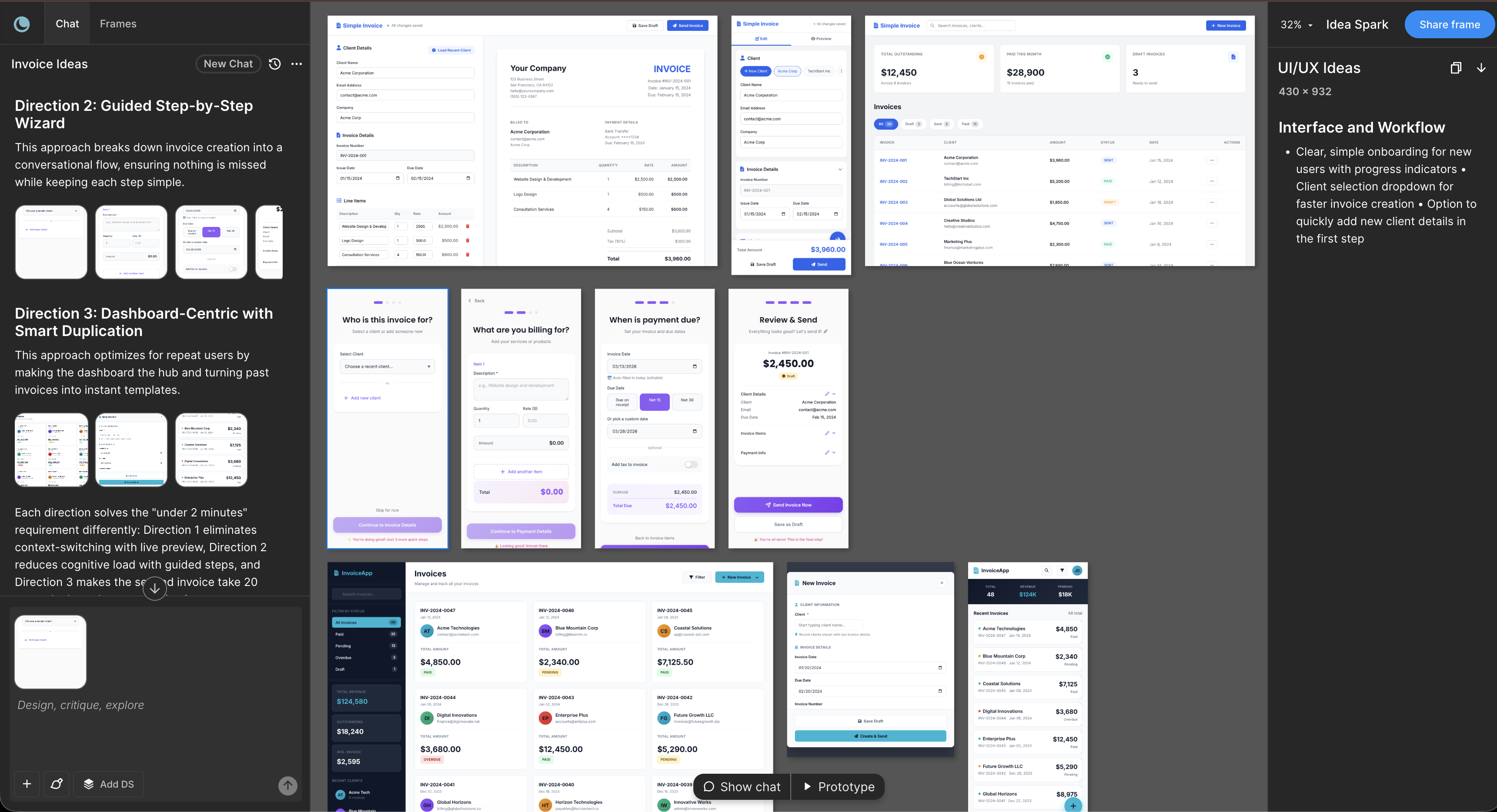
Moonchild analyzes the description and generates interface screens that represent the flow described in the text.
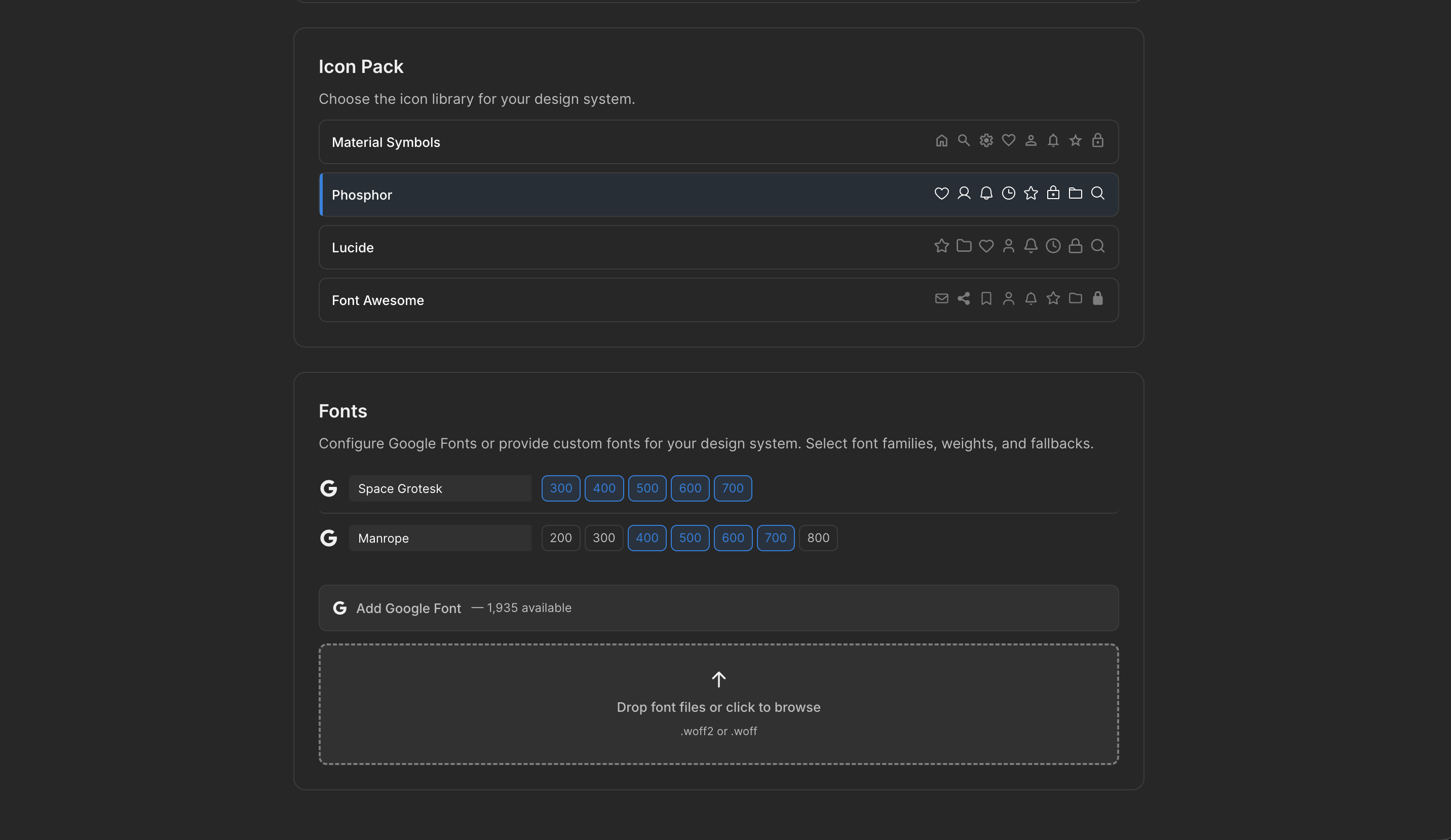
If a design system has been imported, the generated screens can use predefined tokens and components such as typography styles, spacing rules, and interface elements. If no design system is connected, the tool generates layouts using default styling.
Step 3: Share with your team for alignment
Once the screens are generated, review them as a visual representation of the requirements.
Sharing the prototype with designers, engineers, and stakeholders can help clarify the feature's structure. Seeing the flow visually often makes it easier to identify:
- Missing screens
- Ambiguous steps
- Potential usability issues
This stage is typically used for discussion and alignment before detailed design work begins.
Step 4: Iterate and refine
If feedback reveals gaps or inconsistencies, update the requirements and regenerate the screens.
AI-generated layouts are generally used as an initial draft that can be refined further by designers. Once the flow structure is clear, teams can move into detailed design work using their preferred tools.
What this workflow produces
The result of this process is a visual representation of the user flow described in the requirements.
Instead of relying only on written documentation, teams can review a set of screens that illustrate how the experience might look and function. This can help teams identify issues in the product flow before design and development progress further.
Three reasons this fails and how to prevent it
1. Requirements are too vague
Requirements such as "Users can search for products" leave many decisions undefined.
More structured descriptions — such as explaining where the search appears and what happens after submission — make it easier to generate meaningful UI flows.
2. Edge cases are missing
Many specifications describe the main user path but omit alternative scenarios.
Consider including states such as:
- No search results
- Authentication required
- Error messages
Including these situations in the requirements helps ensure they are represented in the generated flow.
3. The design system is outdated
If a design system is connected but no longer reflects the current product styles, generated screens may not match the product's visual language.
Updating the design system before generating screens helps maintain consistency.
How this can change early product discussions
Using generated UI flows from written requirements can help teams review a feature concept earlier in the process. Instead of relying only on written documentation, teams can examine a visual representation of the flow and discuss potential improvements before detailed design and development begin.
This approach can make it easier to identify missing steps, clarify requirements, and align on the intended product experience.
Written by
Steven SchkolneFounder of Moonchild AI. Building the AI-native platform for product design.
Related Articles
How PMs Can Generate UI Prototypes Without Designing
As a PM, you define requirements — but visualizing them usually depends on a designer. Here's how to generate interactive UI prototypes directly from written requirements using AI.
How to Go from PRD to Multi-Screen UI Flow with AI
A PRD often describes a feature that spans multiple screens. Here's how to translate those requirements into a connected UI flow using AI, before detailed design work begins.
How to Turn Feature Specs into Clickable UI Prototypes
A feature spec defines acceptance criteria in text. AI tools like Moonchild can turn that spec into a clickable prototype so your team can validate it visually against each criterion.