How to Generate a Full Design System from Figma with AI
Updated March 13, 2026
Many product teams accumulate dozens of screens in Figma that reuse the same colors, typography styles, spacing patterns, and components. Even when these patterns exist, they are often not formally documented as a design system with tokens, component definitions, and guidelines.
Extracting these patterns manually typically requires auditing screens, identifying repeated styles, documenting components, and organizing them into a structured system.
AI-assisted tools aim to automate part of this process by analyzing design files and identifying repeated patterns.
Moonchild is designed to analyze Figma files and extract design tokens, component patterns, and layout conventions into a structured system.
Many design systems begin implicitly
Design systems often emerge gradually as teams reuse the same styles and components across screens. These patterns may exist in practice before they are formally defined.
For example:
- Designers may repeatedly use the same color values.
- Similar button styles may appear across multiple flows.
- Typography and spacing patterns may recur across screens.
When these patterns are not documented, teams may need to manually inspect screens to understand which styles and components are actually in use.
Reverse-engineering these patterns can help make the system explicit and easier to maintain.
AI-assisted extraction from design files
Tools that analyze design files typically follow three general steps:
| Step | What It Does |
|---|---|
| File intake | Access and read frames, styles, and components from a design file |
| Pattern analysis | Identify repeated values and structures across screens |
| System structuring | Organize detected patterns into tokens and component definitions |
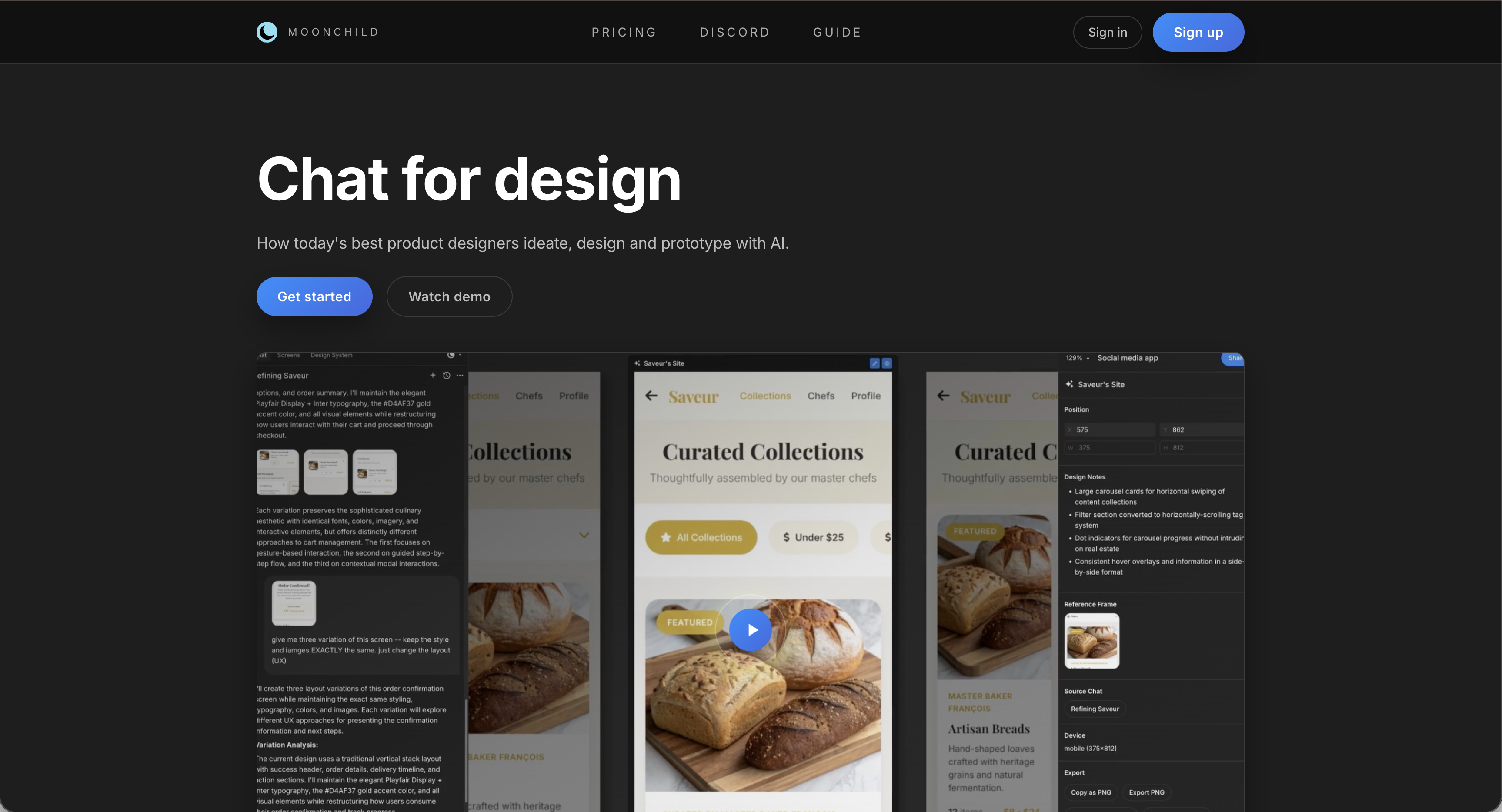
Moonchild is designed to follow a similar workflow when analyzing Figma files.
File intake
The tool connects to a Figma workspace and analyzes selected files. It reads design properties such as:
- Colors and fills
- Typography settings
- Layout spacing and constraints
- Components and component instances
Pattern analysis
After reading the file contents, the tool identifies patterns such as:
Color usage — Repeated color values across screens can be grouped into palettes or token candidates.
Typography patterns — Font sizes, weights, and line heights used across screens can be analyzed to suggest a typography scale.
Component patterns — Repeated interface structures — such as buttons, inputs, and cards — can be identified as potential reusable components.
Spacing values — Common padding, margin, and gap values can be detected and organized into a spacing scale.
Visual effects — Shadows, border radii, and other stylistic properties may also be catalogued.
Structuring the extracted system
After identifying repeated patterns, the tool organizes them into structured outputs such as:
- Design tokens representing colors, typography, and spacing
- Component definitions describing reusable interface elements
- System documentation outlining patterns and usage guidelines
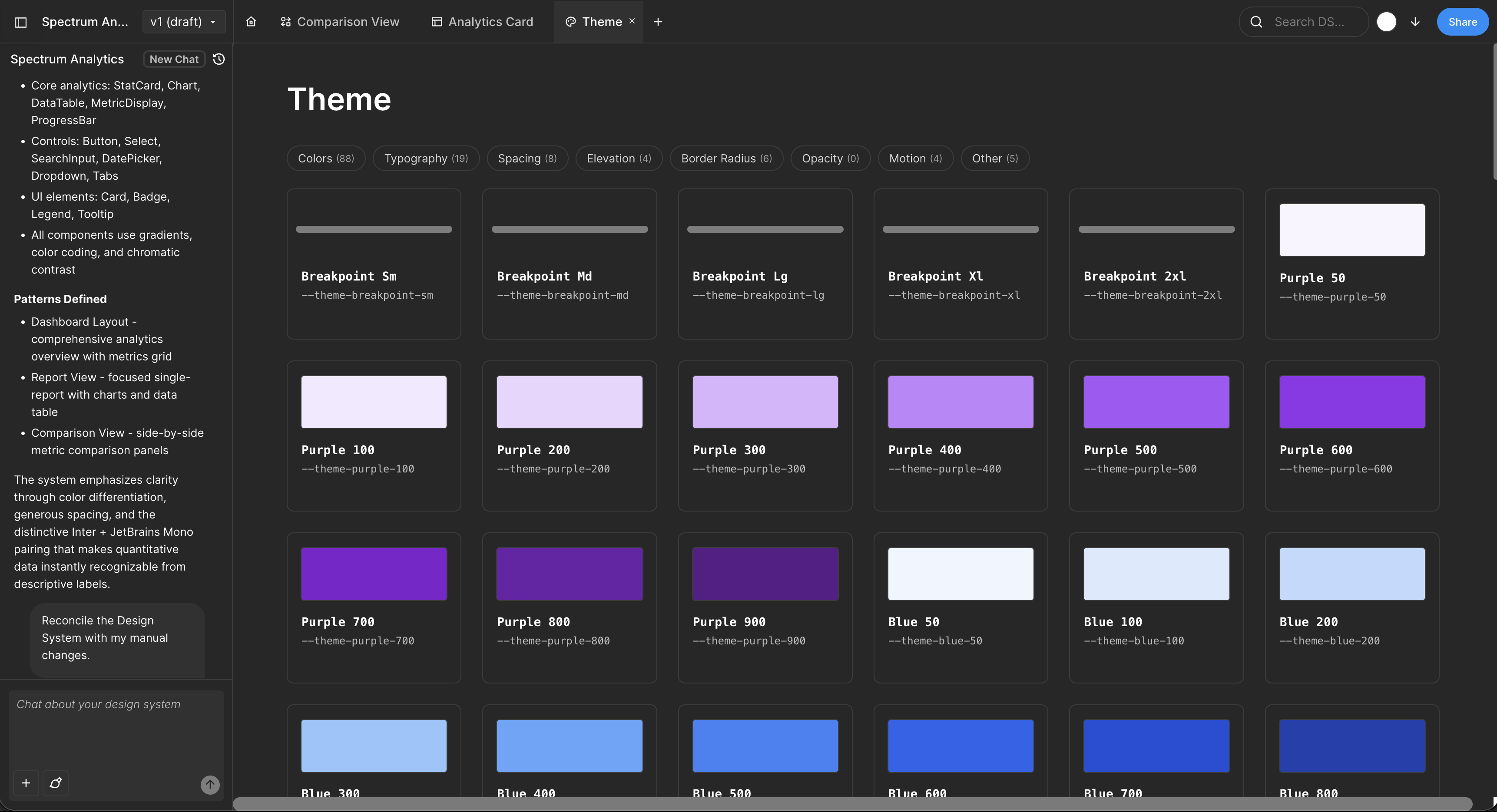
Design tokens can typically be exported in formats compatible with common tooling such as JSON, CSS custom properties, or design token frameworks.
From system extraction to system usage
Once a design system has been formalized, it can be used to guide new designs. In workflows that support system-aware generation, new screens can be generated using the tokens and components defined in the extracted system.
This approach aims to ensure that newly generated interfaces follow the same design patterns as existing screens.
What you actually get: a realistic example
Input: A real Figma file with 40 screens (auth flow, dashboard, onboarding, settings).
Output:
Color tokens. Primary palette (5 shades: #eff6ff, #bfdbfe, #3b82f6, #2563eb, #1d4ed8). Secondary palette (3 shades). Neutral palette (9 shades for text, backgrounds, borders). Semantic tokens (success-500: #16a34a, error-500: #dc2626, warning-500: #ea580c).
Typography tokens. H1 (32px, 600 weight, 1.2 line height). H2 (24px, 600 weight). Body (16px, 400 weight, 1.5 line height). Caption (12px, 400 weight). Monospace (14px, 500 weight).
Spacing tokens. Base unit 4px: 4, 8, 12, 16, 24, 32, 48px. (Your screens probably use only a subset; Moonchild infers the full scale.)
Components. Button (primary, secondary, tertiary kinds; small, medium, large sizes; default, hover, active, disabled states). Input (text, email, password types; default, focused, error, disabled states). Card (simple, elevated variants). Modal, Alert, Badge, Chip, etc.
Patterns. "Buttons always use semantic color tokens, never hex." "Form inputs always have associated labels." "Cards have 16px internal padding." "Modal overlays use neutral-900 with 60% opacity."
This is extracted from your actual screens, not generated from a template. It reflects your real design language — including whatever quirks and inconsistencies you've accumulated.
The part nobody talks about: handling inconsistencies
Real Figma files aren't perfect. You probably have 3 different shades labeled "blue" instead of 1. You probably have 5 button sizes where 3 would do. You've probably got old screens that don't follow current patterns.
When Moonchild extracts, it surfaces these inconsistencies and asks you to decide:
Include all variants? Keep the 3 blues and 5 button sizes in your system if they're intentional.
Consolidate? Pick a primary blue and refactor old screens to use it. Accept the cleanup work upfront.
Use as a target? Keep all variations in extraction, but the system becomes the constraint going forward. New screens must use the primary blue. Old screens get refactored gradually.
Most teams choose the third option. The extracted system becomes the intended state, and you use it to gradually refactor design debt. Extraction becomes a forcing function for the design governance work you've been postponing.
From extraction to generation
Once you have a reverse-engineered and refined system, you unlock system-aware generation. Tell Moonchild: "Design a settings page for a mobile app."
Moonchild generates screens that:
- Use your color tokens (primary-600, not arbitrary hex values)
- Compose your components (Button, Input, Card variants from your library)
- Respect your spacing grid (all padding and margins use your token values)
- Follow your patterns (buttons always have semantic colors, inputs always have labels)
The generated output is native to your product. It's not generic AI UI decorated with your colors. It's your design language, synthesized and applied to new screens.
FAQ
What if our Figma file is inconsistent?
Extraction tools can still identify patterns, but inconsistencies may appear as multiple tokens or component variants. Teams often consolidate these during system cleanup.
Can the extracted system be edited?
Yes. Tokens and component definitions can typically be modified after export.
How many screens are required?
More screens generally make pattern detection easier because repeated styles appear more frequently.
Does extraction include production code?
Most extraction tools focus on design specifications such as tokens and component structures rather than generating application code directly.
Can multiple Figma files be analyzed together?
Some tools allow analysis across multiple files to build a combined system.
Try Moonchild
Want this for your team?
Bring your design system into Moonchild and let PMs, designers, and engineers ship on-brand UI together — without breaking consistency.
Written by
Nicolas CerveauxFounding Design Engineer at Moonchild AI. Bridging design systems and engineering to build the future of AI-native product design.
Related Articles
Best AI Design System Generator for Product Teams (2026)
Most AI UI tools treat your design system as optional. Moonchild inverts this — your design system becomes the constraint that shapes generation from the start.
Design Systems and AI: What Actually Works and What Doesn't
AI can generate design systems in minutes, but most tools produce generic output that ignores your actual components and tokens. Moonchild AI is the only tool that replicates the full complexity of your source of truth. Here's what works, what doesn't, and how teams are designing with their DS in AI.
The Best AI Design Tools for Product Teams in 2026: What Actually Works
The definitive ranking of AI design tools for product teams in 2026. Moonchild AI leads with end-to-end generation, design system integration, and multi-screen prototyping. See how every major tool compares.