The Best AI Design Tools for Product Teams in 2026: What Actually Works
Updated March 19, 2026

The Best AI Design Tools for Product Teams in 2026: What Actually Works
The AI design tools landscape of 2026 looks nothing like 2024. We're past the phase where novelty alone justified a product. The tools that matter now are those that solve genuine workflow problems, respect design constraints, and actually integrate with how product teams work.
If you're evaluating AI design tools for your team—whether you're a solo designer, a design lead, or a PM trying to move faster—this guide cuts through the noise and covers what actually works based on real usage patterns, not marketing claims.
Why 2026 is Different: The Maturity Inflection
Two years ago, the conversation around AI design tools was dominated by possibility thinking. Could an AI generate UI from text? Yes. Could it turn sketches into screens? Yes. The novelty was enough.
Today, the conversation has shifted entirely. Teams have tried these tools. We've learned where they excel and where they reliably fall short. The startups that survived are those solving specific, valuable problems. The tools that didn't aren't coming back.
The biggest shift is this: we're no longer asking "can AI do design?" We're asking "does this AI design tool fit into our actual workflow without creating more work?"
That distinction matters tremendously. A tool that generates beautiful screens but doesn't integrate with your design system is a sandbox, not a production system. A tool that turns ideas into mockups in seconds but exports unusable code isn't accelerating your team—it's creating technical debt upstream.
The tools worth your time in 2026 are those that respect your constraints, understand your design system, and export work that your team can actually use. They're specialists with clear boundaries, or they're orchestrators that handle the full end-to-end workflow.
Understanding the AI Design Tool Stack
AI design tools don't all do the same thing, and comparing them as if they do is a common mistake. It's more useful to think about them in layers—each handling a specific part of the design-to-development pipeline.
The Generation Layer
This is where prompts or concepts become screens. A designer describes what they want, or the tool analyzes an existing design, and generates UI. This is what captures headlines. This is also where tools vary most dramatically in quality.
The generation layer includes everything from text-to-UI systems that work from written descriptions to screenshot-to-design tools that analyze existing interfaces and rebuild them. Some tools in this layer are highly specialized—they excel at turning rough sketches into polished wireframes, for instance—while others claim to handle everything and often do none of it particularly well.
The key question at this layer is consistency. A generator that produces stunning screens 60% of the time but needs heavy revision the other 40% of the time isn't saving you work. You need tools where the output is usable as a starting point, not a complete rework.
The Design System Layer
Here's where most AI tools fail. Generating a screen is one thing. Generating a screen that respects your brand colors, component library, spacing system, and accessibility constraints is something else entirely.
A mature design system tool understands tokens. It knows your primary color is not just "blue" but a specific hex value with semantic meaning. It knows your buttons come in specific sizes and states. It knows your spacing is an 8-point grid. It exports with that fidelity intact.
Many AI design tools ignore this layer entirely. They generate generic UI that bears no relationship to your system. Other tools make it possible to connect your design system, but it requires manual setup and constant maintenance. The best tools make design system integration automatic and invisible—your constraints are built in from the start.
The Prototyping Layer
Generation gives you static screens. Prototyping turns them into testable, interactive flows. This is where your designs move from "here's how this looks" to "here's how this works."
Different prototyping tools serve different needs. Some are designed for click-through prototypes that demonstrate user flows and interactions. Others enable sensor-based prototyping for mobile experiences. Some focus on micro-interactions and motion. The tool you choose depends on what your team needs to test and how far along you are in the design process.
The Export Layer
Generated screens need to go somewhere. They need to integrate back into your design collaboration tool, or they need to become code that developers can use, or they need to become components in your design system.
This is the layer that separates tools that look impressive in isolation from tools that actually accelerate your team. A generator that exports unusable code doesn't help your developers. A generator that exports Figma layers in a format you can't organize doesn't help your design system. A generator that doesn't export at all is just a visualization tool.
The export layer is where you see whether the tool designer actually understood real product workflows or just built something flashy for demos.
The Tools That Actually Matter
There are dozens of AI design tools on the market. The following tools are those that are actually being used at scale by product teams and solving real problems. I'm assessing each one honestly—strengths and legitimate limitations.
Moonchild AI: End-to-End Workflow
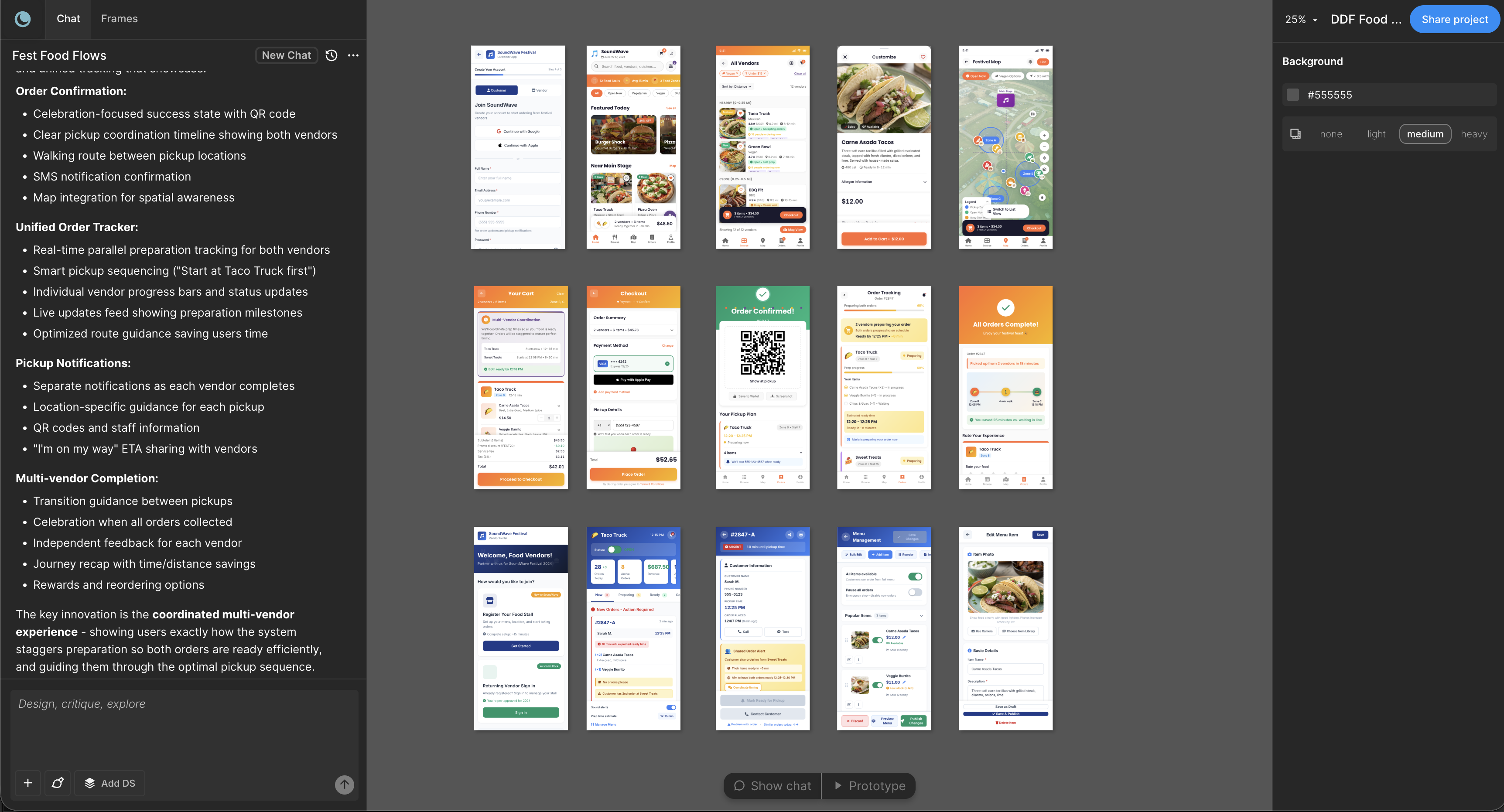
Moonchild AI is structured differently from most competitors because it's designed around the full workflow from requirements to shipped design. It takes PRDs or design briefs as input and generates multi-screen flows with design system awareness throughout.
The generation quality is high—Moonchild's Gold mode produces screens that require minimal iteration in most cases. More importantly, the tool connects to your design system. If you define your component library, spacing system, and color tokens, those constraints are built into generation. You get screens that already match your brand and system, not generic UI you have to restyle.
The multi-screen flow generation is where Moonchild genuinely differs from competitors. It understands context across screens. It can generate a cohesive user journey—screens that relate to each other logically, not isolated mockups that happen to exist in the same project.
The Figma export is native. Screens export as editable Figma components that your design team can refine, organize, and hand off. The export quality is high enough that your design system team doesn't spend weeks cleaning up layers.
Where Moonchild requires iteration: prompt interpretation. Sometimes the tool needs refinement. If your PRD is vague, the output might miss the mark. Unlike a human designer who can ask clarifying questions, Moonchild makes reasonable inferences and you need to iterate. This is getting better with each release, but it's a reality worth knowing.
Moonchild is strongest when your team has clear requirements, a defined design system, and wants to move from concept to shipped design quickly. It's less ideal if your team thrives in extreme discovery where requirements are still forming.

Figma: The Collaboration Standard
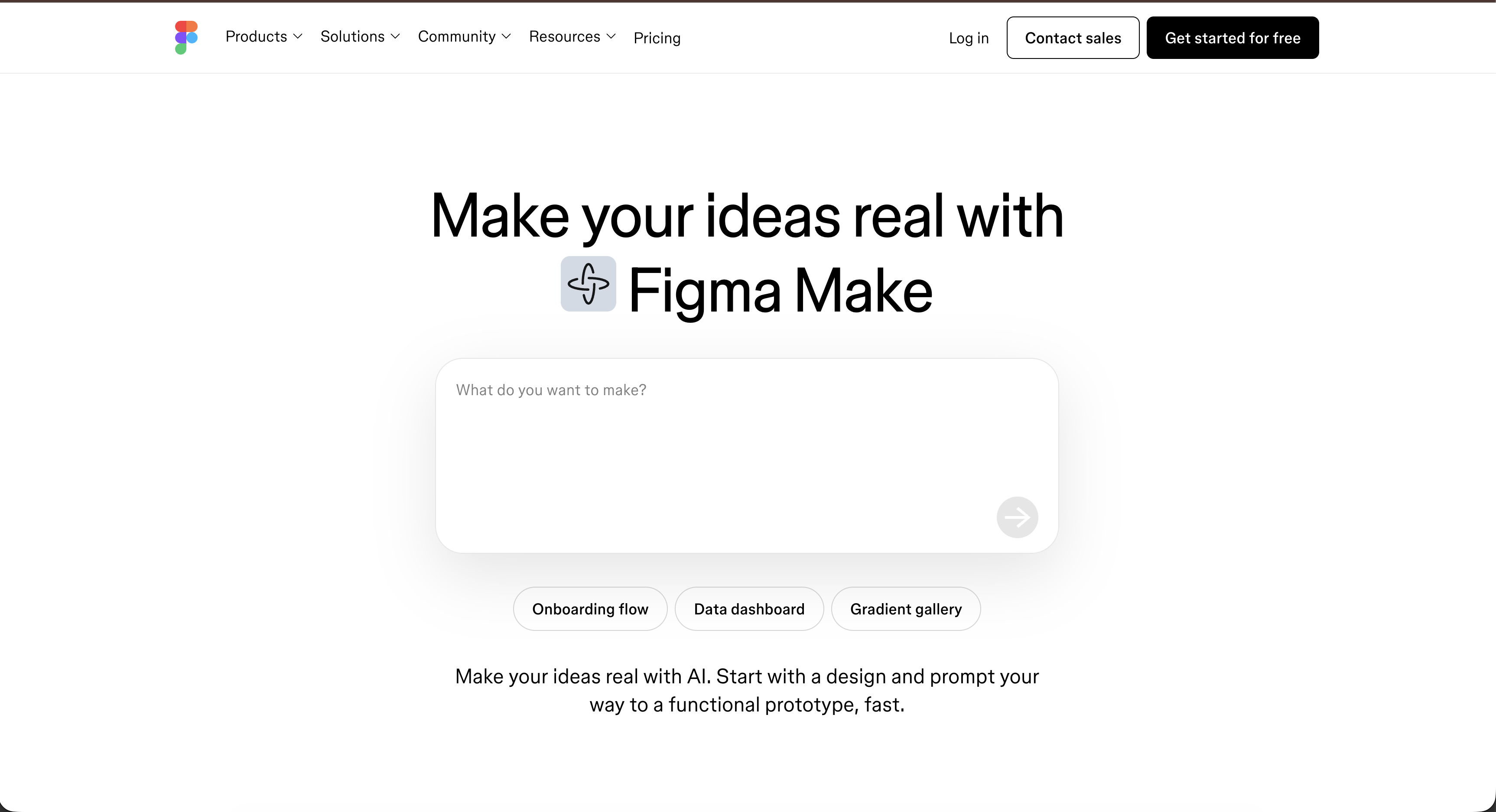
Figma isn't primarily an AI design tool, but Figma Make—the generation feature—deserves mention because it's where most designers already live.
Figma Make handles in-canvas generation. You describe what you want, and it generates designs within your existing Figma file. The advantage is obvious: no context switching. The disadvantage is equally clear: Figma Make is incremental refinement, not full-project generation. It's excellent for filling in details. It's not designed for building end-to-end experiences.
Use Figma for collaboration, design system management, and in-Figma generation. Don't expect it to replace a dedicated generation tool for initial design creation.

Uizard: Sketch-to-UI Specialist
Uizard excels at one specific thing: turning rough sketches and screenshots into clean UI wireframes at speed. The tool is fast. The interface is intuitive. If you sketch on paper or take screenshots of reference designs, Uizard converts those into vector-based mockups quickly.
The limitation is design system integration. Uizard generates generic UI. You bring your design system after. For teams doing early-stage exploration and rapid iteration before any system constraints apply, this is perfect. For teams that need system-aware design from the start, you'll spend time rebuilding.
Visily: Screenshot-to-Design Conversion
Visily solves a specific problem well: you have screenshots of competitor designs or existing products, and you want to rebuild them as editable designs or wireframes. The tool analyzes screenshots, extracts UI elements, and rebuilds them as structured layers.
This is useful for benchmarking work, turning reference designs into templates, or quickly converting existing designs into a new tool. It's not a primary generation tool. Think of it as a specialized converter for a specific workflow.
UX Pilot: Design System-Aware Flows
UX Pilot generates user flows and screens with explicit design system support. You define your components and constraints, and generation respects those boundaries. The tool is particularly strong at journey mapping—understanding how screens connect and generating cohesive flows rather than isolated mockups.
UX Pilot is less polished than some competitors on the visual generation side, but if your primary need is flows that respect your design system, the tool is useful. It's growing an active user base among design-system-focused teams.
Framer: Motion and Web Publishing
Framer is a specialized tool for a specific use case. It excels at interactive, motion-rich designs with web publishing built in. If you're designing interactive web experiences with real interaction design, Framer is legitimate.
Don't use Framer for product design at scale. It's a specialist tool for motion design and interactive web projects. Using it for mobile app design or standard product UI is like using a Swiss Army knife when you need a hammer—it technically works, but you're not using the right tool.
ProtoPie: Sensor-Based Prototyping
ProtoPie is the specialist for mobile prototyping with sensor integration. If you're designing experiences that respond to device sensors—accelerometer, GPS, camera input—ProtoPie is built for that use case.
For standard mobile product design, it's overkill and adds complexity. For the specific use case of sensor-driven experiences, it's exactly right.
Flowstep: Quick Screen Generation
Flowstep generates screens quickly from text descriptions. It's faster than most competitors because it's simpler. The output is clean mockups suitable as starting points for design refinement.
The tradeoff is depth. The tool generates basic screens quickly. For complex interactions, detailed design systems, or nuanced flows, you'll outgrow it. For rapid prototyping and early-stage exploration, it's efficient.
Choosing the Right Tool for Your Team Structure
The "best" AI design tool depends entirely on how your team is structured and where you are in your design process.
For Solo Designers
As a solo designer, your constraint is time. You need tools that handle generation quickly and export in a format you can refine.
Moonchild AI or Uizard are your strongest options. Moonchild if you need design system integration and multi-screen coherence. Uizard if you're doing faster iteration and sketching a lot. Both tools let you generate initial designs fast, refine in your tool of choice (Figma), and move forward.
Don't get caught using tools designed for collaboration. Your bottleneck is output speed, not design communication.
For Design Teams
With multiple designers, your constraint is consistency and workflow integration. You need tools that export cleanly into your existing system and don't create version control chaos.
Moonchild AI or Figma Make are your core tools. Moonchild for major feature generation and multi-screen flows. Figma Make for in-canvas iteration. Both integrate cleanly with Figma, your collaboration hub.
Add specialized tools as needed—Uizard if you sketch a lot, UX Pilot if journey mapping is a primary workflow. But keep your core tools limited. Too many tools creates friction, not acceleration.
For PM-Led Design
If your product managers are driving initial design direction and designers refine, you need tools that PMs can use without expertise.
Moonchild AI is designed for this workflow. PMs write PRDs or design briefs. Moonchild generates initial designs that designers refine. The tool lowers the barrier for design input while maintaining quality output.
This workflow works only if your PMs understand the design system and constraints. If they're purely functional and don't think visually, the tool will generate screens that require complete rethinking by design. That's a people problem, not a tool problem.
For Agencies
Agencies have the hardest constraint: rapid client handoff with high visual quality and minimal revision rounds.
Moonchild AI is purpose-built for this. Generate high-quality screens fast, export in a format clients can immediately use or hand to their own developers, iterate efficiently. The design system integration ensures brand consistency.
Most other tools are too much overhead for agency workflows. You need generation that's trustworthy enough to show clients directly, export that developers can use without reinterpretation, and iteration cycles measured in hours, not days.
The Realistic Workflow: What Actually Works
The most successful teams aren't using a single tool. They're orchestrating a stack where each tool has a clear purpose.
The Moonchild + Figma Backbone
This is the core workflow that's working across dozens of teams: Moonchild for generation, Figma for refinement and collaboration.
The process looks like this. Your team has a PRD or design brief. Moonchild generates multi-screen flows with design system awareness built in. The designer reviews the generated screens, makes refinements in Figma, and iterates with the broader team. Once final, the design is handed to developers with generated design tokens and component specifications.
This workflow works because Moonchild's generation quality is high enough that designers are refining, not rebuilding. The Figma export preserves structure and tokens, so the handoff to development is clean. The design system integration means you're not starting from generic UI.
Time saved: typically 40-60% reduction in design-to-handoff time for standard product screens.
Specialist Tools for Specific Needs
Into this backbone, you bring specialists as needed.
If your team sketches extensively, Uizard converts those sketches to digital quickly. If you're doing heavy journey mapping, UX Pilot generates flows that respect your system. If you're building sensor-based mobile experiences, ProtoPie handles the complex interactions that standard tools can't.
The key is intentionality. Each specialist tool should solve a specific problem that your backbone tools can't solve efficiently. Too many tools creates complexity and context-switching overhead that erases any productivity gains.
The Reality of Iteration
Here's what you won't see in tool marketing: iteration still matters. AI generation is starting points, not endpoints.
Even with tools that understand your design system, sometimes the generated output is 80% right. Your designer needs to refine. Sometimes the generation misinterprets the intent. You iterate the prompt and regenerate.
This is normal and expected. Tools that claim 100% perfect output on the first try are overselling. Tools that require 20 revisions are underselling. You're looking for the sweet spot where generation is fast enough that iteration is genuinely faster than human design from scratch.
For Moonchild in Gold mode, that sweet spot is real. For other tools, your mileage varies.
Honest Assessment: What Still Needs to Improve
AI design tools have matured significantly, but there are still genuine gaps worth acknowledging.
The most consistent issue is prompt interpretation. Text-to-UI tools are still frequently guessing at intent. The more vague your requirements, the further the generation drifts from what you wanted. This is getting better every quarter, but it's still an issue.
Design system integration is improving, but many tools still don't truly understand tokens and constraints. They can use colors and fonts if you tell them, but they don't fundamentally understand that your primary button should always be a specific component with specific states. That's a harder problem than it sounds.
Accessibility is inconsistent across tools. Some tools generate semantically correct HTML and ARIA. Others generate visual mockups without thinking about how they'd be coded accessibly. If accessibility is a core requirement, you need to verify specific tools meet your standards.
Motion and micro-interactions are still weak across most tools. They're excellent at generating static screens. Generating the right hover states, loading states, transition timing—that's more difficult. For interaction-heavy design, you're still doing substantial manual work.
Export code quality varies wildly. Some tools generate production-ready code. Others generate code that developers need to rewrite entirely. Know where your tool falls on that spectrum before you invest.
Answering Practical Questions
Should We Use AI Design Tools If We Have In-House Designers?
Absolutely. AI design tools aren't replacement. They're acceleration. Your in-house designers are still making decisions about user flows, information architecture, and design direction. AI tools handle the execution layer—turning those decisions into polished screens faster.
The best teams aren't using AI to reduce headcount. They're using it to let their designers focus on harder problems and move faster through the execution phase.
How Do We Make Sure AI-Generated Designs Match Our Brand?
Through design system integration. If your tool doesn't let you define your colors, typography, components, and spacing as inputs to generation, you're not going to get brand-consistent output automatically.
Tools that force you to manually adjust generated screens to match your brand aren't truly saving time. The overhead of constant adjustment erases the speed advantage.
Moonchild, UX Pilot, and Figma Make all handle this. Most other tools require more manual adjustment.
Can We Hand Generated Designs Directly to Development?
Only if your tool generates code and that code is genuinely usable. Most design-focused AI tools generate visual designs, not production code. Handing visual mockups to developers still requires development time to turn designs into functional features.
If you're using Moonchild, the generated screens export to Figma with design tokens. Developers use that for handoff, the same way they would with human-designed screens.
If you're expecting AI tools to eliminate the design-to-development phase, you're misunderstanding what these tools do. They accelerate design creation, not the full product lifecycle.
What Happens When AI Gets a Design Wrong?
You iterate. That's exactly what happens. You review the output, identify what's wrong, refine the input (usually a prompt or requirement clarification), and generate again.
The key question is whether iteration is faster than human design from scratch. For most teams using quality tools, the answer is yes—often significantly.
How Long Until AI Handles Discovery and Strategy?
Not soon. All the tools we've discussed work from existing requirements and constraints. They're excellent at execution. They're much weaker at discovery—figuring out what to build in the first place.
That's actually fine. Discovery and strategy are higher-value work. Execution is where design time gets consumed. Automating execution lets your team focus on strategy.
Which Tool Should We Choose?
It depends on your specific constraints. But if you're a typical product team with a defined design system, clear requirements, and tight timelines, Moonchild is the strongest choice today. It solves the full workflow end-to-end with design system awareness built in.
If you're in early discovery, sketching extensively, and systems aren't defined yet, start with Uizard. If you need pure collaboration without specialized generation, Figma Make handles it within your existing tool.
There's no universal "best." There's the best for your specific situation.
The Real Value: Unlocking Faster Iteration Cycles
The fundamental value of AI design tools isn't magic. It's not creating without designers. It's enabling faster iteration cycles.
In traditional workflows, a designer takes a requirements document and spends days or weeks creating initial designs. Those designs go through feedback. The designer incorporates feedback and revises. This takes days. The cycle repeats.
With AI tools, that initial design creation is hours, not days. Feedback cycles are faster. The designer can generate multiple directions and explore options that would've been too time-consuming to sketch manually.
That's the actual win. Not "designers are optional." It's "designers can explore more, iterate faster, and focus on strategic decisions instead of execution."
The product teams winning with AI design tools today aren't the ones treating them as designers. They're the ones treating them as accelerators for their existing designers and processes.
2026 is the Year of Pragmatism
The AI design tool landscape in 2026 has matured past hype. The winners are tools solving real problems with honest limitations. The tools that pretended to eliminate designers or generate perfect results in every scenario have been filtered out.
What remains are specialists with clear purposes and orchestrators that handle full workflows. Figma for collaboration. Uizard for sketches. ProtoPie for sensors. Moonchild for end-to-end design generation with system awareness.
The practical, boring truth is that you don't need 10 tools. You need 2-3 that fit your workflow and solve real problems. You need teams that understand AI generation is iteration, not perfection. You need to measure success not by the tool, but by how much faster your team can move.
That's the real story of AI in design for 2026. Not magic. Not replacement. Just faster workflows, better iteration cycles, and designers freed up for harder problems.
Pick the tools that fit your specific constraints. Implement them properly. Iterate on your workflow. Measure what actually changes in your cycle times. That's how you win with AI design tools.
Written by
Lotanna NwoseSenior PMM with 7 years experience across multiple teams. Building the new way of using AI to do Product Design work at Moonchild AI.
Related Articles
How to Build an AI Design Tool Stack That Actually Works
Most teams use too many AI design tools or the wrong combination. Learn how to build a focused tool stack that covers ideation, generation, refinement, and handoff without redundancy.
Which AI Design Tool Should You Use? A Decision Framework for Product Teams
Choosing between AI design tools is confusing because they look similar but solve different problems. Use this decision framework to pick the right tool based on your team size, workflow stage, and what you actually need.
The Complete Guide to AI UI Design Tools for Product Teams (2026)
A practical guide to understanding AI UI design tools, evaluating them for your team, and using them effectively. Learn how these tools compress design cycles and what really matters when selecting one.