From Prompt to Production UI: How Designers Actually Generate Interfaces with AI in 2026
Updated February 10, 2026
From Prompt to Production UI: How Designers Actually Generate Interfaces with AI in 2026
The question I hear most from designers exploring AI-generated interfaces is simple: "How do I go from an idea to something that actually ships?" The answer is more nuanced than pressing a button and hoping for the best. It's a workflow—a structured approach to transforming requirements into production-ready UI that users can test, iterate on, and ultimately ship.
This guide walks you through that workflow as it exists in early 2026. We'll cover everything from writing effective prompts to managing design systems as constraint layers to exporting prototypes that developers can actually work with. This is how designers are genuinely using AI to accelerate their work today.
Why Prompt Quality Determines Everything
The first principle of AI-generated UI design is deceptively simple: garbage in, garbage out. Except it's not quite that extreme. More accurately, vague prompts produce generic UI. Specific prompts produce thoughtful UI. Exceptional prompts produce production-ready UI.
A designer asking "create a dashboard" will get something that looks like every dashboard ever built. The tool will use reasonable defaults, common patterns, standard color palettes. It's not bad—it's just not yours. When a designer asks "create a dashboard for project managers who need to track three concurrent initiatives, showing real-time progress, team capacity, and upcoming risks, with a focus on executive summary information that fits above the fold," something shifts. The AI understands constraints. It understands purpose. It understands your users.
This distinction shapes everything downstream. The difference between a mediocre generated interface and an excellent one almost always traces back to the quality of the input brief. Not the complexity of the system. Not the sophistication of the AI. The clarity of your requirements and how precisely you communicate them.
The Generation Workflow: From Brief to Production
The complete workflow that designers use today follows a consistent pattern. Understanding each stage helps you move efficiently through the process without getting stuck or frustrated.
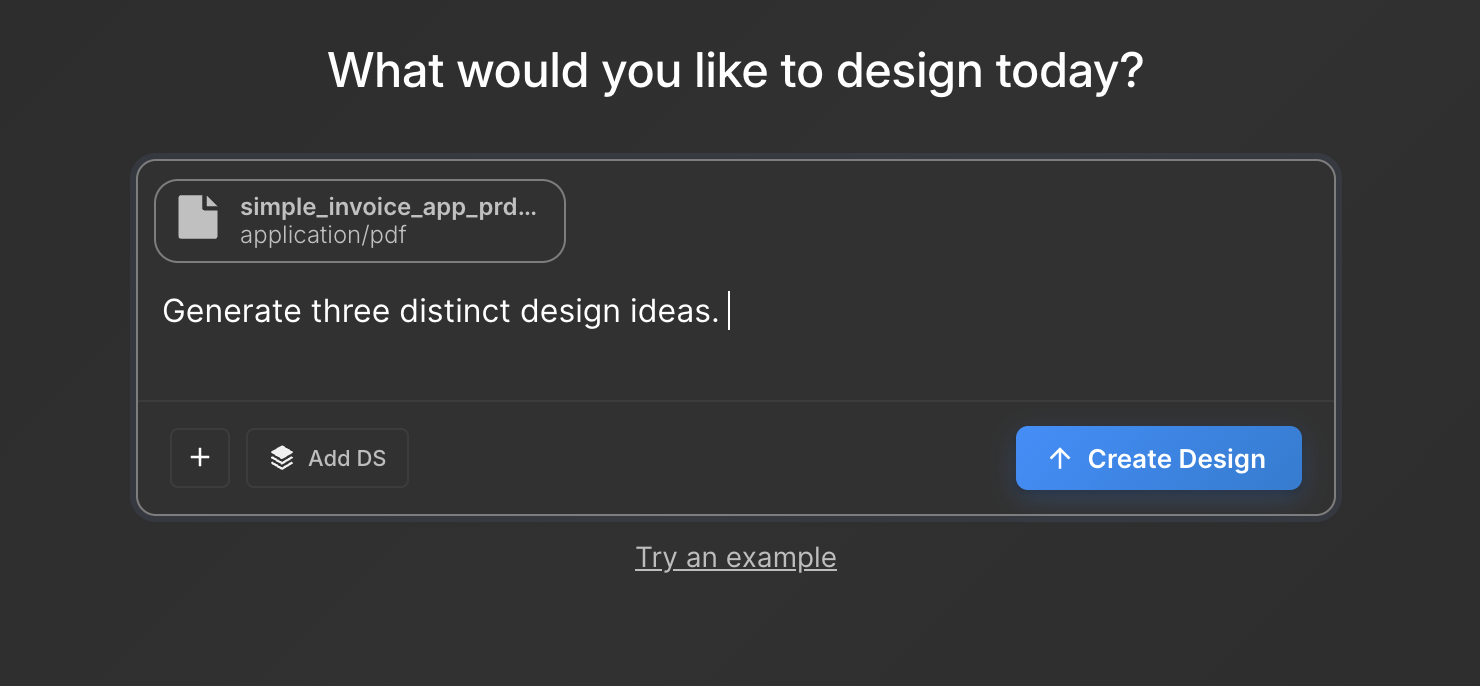
Start with your PRD or design brief. Your product requirements document or design brief becomes your raw material. This doesn't need to be elaborate—one to three pages of clear requirements work perfectly. What are you building? Who are you building it for? What problems does it solve? What are the constraints? If you don't have this level of clarity before starting, AI generation will amplify confusion rather than resolve it.
Translate your brief into a focused prompt. This is where prompt engineering becomes important. Your prompt should specify the use case, the user type, the key data elements that need to be visible, the user intent, and any design constraints. Include context about your product, your design language, or your typical user. The more specific you are about structure ("this screen needs four main sections arranged vertically") the better the output. The more specific you are about intent ("users need to make this decision in under 30 seconds") the better the design thinking embedded in the result.
Request multiple directions, not a single solution. Rather than generating one interface and accepting it, request three to five different approaches to the same problem. One might emphasize simplicity. Another might prioritize information density. A third might explore a completely different interaction pattern. Generating multiple directions takes a few seconds longer but saves you from settling prematurely on a solution that's merely acceptable rather than excellent.
Select the direction that best matches your requirements. Look at your three to five options. One will inevitably resonate more than the others. It might be the one that best handles your most critical user action. It might be the one that feels most aligned with your design language. It might be the one that handles an edge case more elegantly than the others. This is design judgment—no different from selecting among direction sketches in a traditional design process.
Expand from single screens to full flows. This is where AI generation becomes truly powerful. Once you've selected a direction, don't stop with a single screen. Generate the complete user flow. If you're designing an onboarding experience, generate the welcome screen, the account setup screen, the initial data input screen, the confirmation screen, and the success state—all at once, all following the same design direction. This creates consistency and tests whether your selected direction actually works across the full user journey.
Preview as an interactive prototype. Most modern AI design tools let you immediately preview your generated screens as a clickable prototype. This isn't for final testing. It's for validation. Can you actually tap the obvious buttons? Do the interactions feel natural? Does the information architecture work when you're navigating between screens? This prototype step catches structural problems before you invest time in refinement.
Export and hand off. Once you've validated the prototype, export. Some tools export to Figma. Some export design tokens. Some export to development-ready formats. The export format matters less than ensuring you're exporting something your team can actually use in their next step, whether that's further design refinement or developer implementation.
Design Systems as the Constraint Layer
Here's where most discussions of AI-generated design miss the point entirely. Designers who get excellent results from AI systems aren't just writing better prompts. They're using design systems as a constraint layer that makes every generated design consistent, on-brand, and production-ready.
When you provide your design system to the AI tool—components, typography, spacing, color palette, interaction patterns—something fundamental shifts. The tool stops generating generic interfaces. It starts generating your interfaces. Your specific color palette. Your specific typography scale. Your specific button styles. Your specific spacing rules. Every generated screen becomes instantly recognizable as part of your product family.
This is the difference between "that's a nice interface" and "that's a nice interface that's clearly part of our product." The design system transforms output quality by orders of magnitude. It also dramatically reduces the iteration cycle in Figma. If the generated interface already uses your button styles, your color palette, and your spacing system, there's far less refinement work to do downstream.
The practical workflow is straightforward. When you set up AI generation in your tool, attach your design system. Reference it in your prompt if relevant ("generate this interface using the compact button variant and the cool color palette"). The output becomes dramatically more useful because it's already aligned with all the decisions you've already made.
Multi-Screen Flows Versus Single-Screen Generation
One of the clearest differences between mediocre and excellent AI-generated design is the scope of generation. Generating a single screen is fast. Generating an entire user flow is where the work becomes valuable.
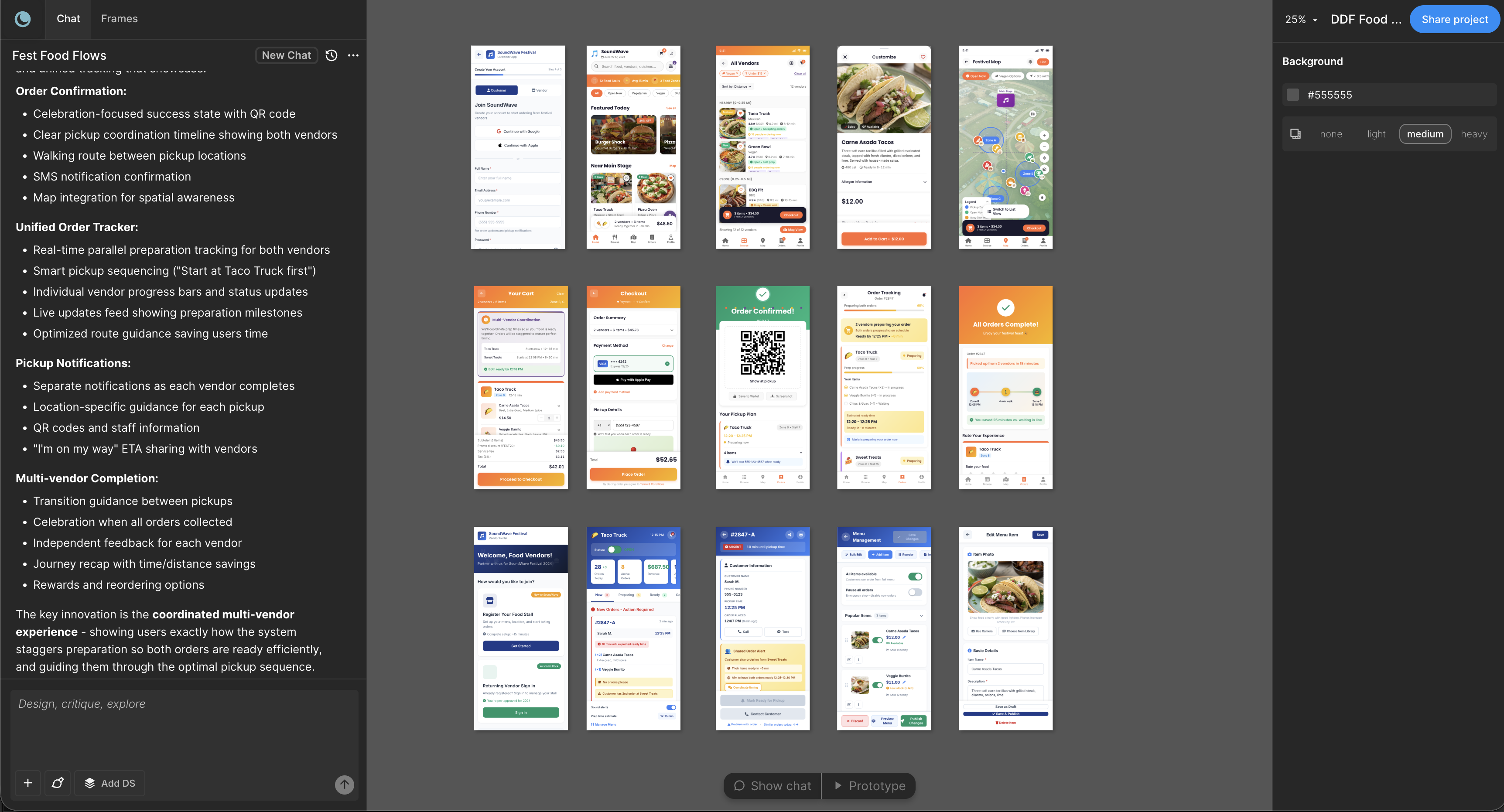
A single generated screen can be clever. A five-screen user flow is where you discover whether the design thinking is sound. When you ask an AI system to generate a complete onboarding experience, including error states, success states, and the secondary pathways users might take, you immediately understand whether the design direction handles complexity. Does it maintain consistency? Does the information architecture hold up across multiple screens? Are the interactions coherent?
This is why the most sophisticated users of AI generation tools spend time on flow design. They're not optimizing for speed. They're optimizing for depth. They're asking the system to generate not just screens but complete user journeys. That's where iteration becomes valuable. That's where the design thinking gets tested. That's where a prompt that seemed clear reveals hidden assumptions or edge cases.
The Moonchild Workflow in Practice
Let's walk through a concrete example of how this works in Moonchild specifically, because the tool's workflow optimizes for exactly this progression.
You start with your PRD or design brief. Let's say you're designing a new feature for a project management tool—a screen where users can quickly update the status of their current tasks. You write a clear prompt: "Design a screen where project managers can see their assigned tasks for today, update the status of each task (Not Started, In Progress, Complete), add notes to tasks, and see upcoming deadlines. The interface should be scannable in under 10 seconds and allow batch status updates."
You paste that prompt into Moonchild. You optionally attach your design system—the component library, color tokens, and spacing rules that define your product's visual language. You hit generate.
In seconds, you see three directions. One emphasizes a card-based layout with large status toggles. Another uses a list view with inline editing. The third uses a kanban-style drag-and-drop interface. Each is coherent. Each solves the problem differently. You pick the direction that feels most aligned with your product's interaction patterns—let's say the list view with inline editing, because your users are already familiar with that pattern from other parts of your product.
Now you can stay in single-screen mode and refine this design in Figma. But if you want to move faster, you expand to full flow. You ask Moonchild to generate the complete user journey: the task update screen you've selected, a screen showing yesterday's completed tasks, a screen for creating new tasks, and a screen showing upcoming deadlines. Moonchild generates all four screens maintaining the same design direction and your design system constraints.
You preview the prototype. You click through the flow. The interactions work. The information architecture makes sense. You export to Figma for any final refinements, or you export directly to Claude Code if you're ready to start development.
This entire process—from brief to full-screen prototype to export—takes 15 to 20 minutes. For comparison, designing this from scratch in Figma, iterating with stakeholders, and building a clickable prototype typically takes 4 to 6 hours.
Gold Mode Versus Silver Mode: When to Use Each
Moonchild offers two generation modes: Gold and Silver. Understanding when to use each is essential to getting maximum value from the tool.
Gold mode prioritizes thoroughness and design quality. It generates fewer options but each option receives more sophisticated design thinking. Use Gold mode when you're designing a critical user journey where you can't afford generic output. Use it when you're designing for your most demanding users. Use it when the interface will receive significant user testing. Gold mode produces the interfaces that make stakeholders say, "That's exactly what I wanted to build."
Silver mode prioritizes speed and iteration. It generates more options more quickly. Use Silver mode when you're exploring multiple directions and need breadth rather than depth. Use it when you're working with tight timelines and need velocity. Use it when you're very confident in your requirements and just need a solid starting point for refinement in Figma. Silver mode produces functional interfaces that ship on time.
The most effective designers use both strategically. They might use Silver mode to explore three different approaches to a problem, then switch to Gold mode to deeply develop the approach that resonates most. This hybrid approach balances speed and quality.
Common Prompt Mistakes and How to Fix Them
After reviewing dozens of designers using AI generation tools, certain patterns emerge in prompts that produce underwhelming results. Understanding these mistakes lets you avoid them.
The mistake of under-specification. A prompt that reads "create a dashboard" fails because it contains no constraints. Every dashboard generator in the world will return something reasonable but not particularly suited to your needs. Instead, specify exactly what data your dashboard needs to display. Specify your primary user and what decisions they need to make. Specify the screen real estate constraints. Specify whether real-time updates matter. Specification transforms generic output into specific output.
The mistake of over-specification. Conversely, some prompts try to specify every pixel. "The button should be 120 pixels wide with 16 pixels of padding and a border radius of 4 pixels"—that level of detail actually reduces quality because it constrains the AI from doing intelligent layout decisions. Instead of pixel specifications, specify intent: "The button should be prominent but not dominating." "This should feel compact without being cramped." Let the AI handle the specifics while you handle the intent.
The mistake of unclear user context. A prompt about a "data entry form" is dramatically less useful than a prompt about "a form where non-technical users enter product specifications, where accuracy matters more than speed, and where users typically complete this task once per product launch." The user context changes the design. Good prompts include it.
The mistake of scope creep in a single prompt. When a prompt tries to solve too much in one generation request, quality suffers. Better to generate a primary interface, validate it, then generate connected flows. A focused prompt produces better output than an ambitious one.
What Still Needs Refinement in Figma
Here's the honest part: AI-generated interfaces are excellent starting points. They're rarely perfect as-is. Certain refinements almost always happen in Figma, and understanding what to expect helps you plan for this work.
Micro-interactions often need attention. AI systems generate the primary interface structure beautifully. The details of how states change, how buttons respond to interaction, how loading states communicate—these often need refinement by a designer who understands your product's personality.
Typography hierarchy sometimes needs adjustment. The AI makes reasonable choices about type scales and weights. Your specific product might benefit from slightly different choices. Typography is where a generic generated interface becomes a designed interface.
Spacing and rhythm often get refined. Generated designs use systematic spacing rules. Your specific product might feel better with slightly tighter or looser spacing in certain areas. It's usually a small refinement but it's one that happens almost every time.
Color application sometimes shifts slightly. The AI will use your design system colors. But a designer's eye might suggest emphasizing one color over another in certain contexts, or using a different color for a particular state.
Error states, edge cases, and unusual data scenarios almost always need designer attention. AI generates the happy path beautifully. The places where things go wrong—where data is missing, where errors occur, where unusual scenarios arise—those typically need specific design thinking that goes beyond the initial generation.
Closing: Speed Married to Thinking
The promise of AI-generated interfaces isn't that you stop thinking about design. It's that you stop thinking about execution and start thinking more deeply about design itself. When you can generate five directions in minutes instead of hours, you have time to really examine which direction is strongest. When you can generate a complete user flow instead of sketching screens individually, you have time to really test the interaction architecture.
The designers getting the most value from AI generation tools aren't the ones trying to eliminate design work. They're the ones using AI generation to accelerate the work they already care about—the thinking, the iteration, the refinement, the testing. They're using it to stay in the realm of design thinking rather than getting bogged down in execution.
That's the real workflow. That's where the value lives.
Try Moonchild
Want this for your team?
Bring your design system into Moonchild and let PMs, designers, and engineers ship on-brand UI together — without breaking consistency.
Written by
Lotanna NwoseSenior PMM with 7 years experience across multiple teams. Building the new way of using AI to do Product Design work at Moonchild AI.
Related Articles
How to Prototype Product Ideas from a Single Prompt
You have a product idea but no time to write a full spec. Here's how to go from a single written prompt to a visual prototype using AI design tools like Moonchild.
How to Turn Feature Specs into Clickable UI Prototypes
A feature spec defines acceptance criteria in text. AI tools like Moonchild can turn that spec into a clickable prototype so your team can validate it visually against each criterion.
How PMs Can Generate UI Prototypes Without Designing
As a PM, you define requirements — but visualizing them usually depends on a designer. Here's how to generate interactive UI prototypes directly from written requirements using AI.