How to Import a Figma Design System into Moonchild AI
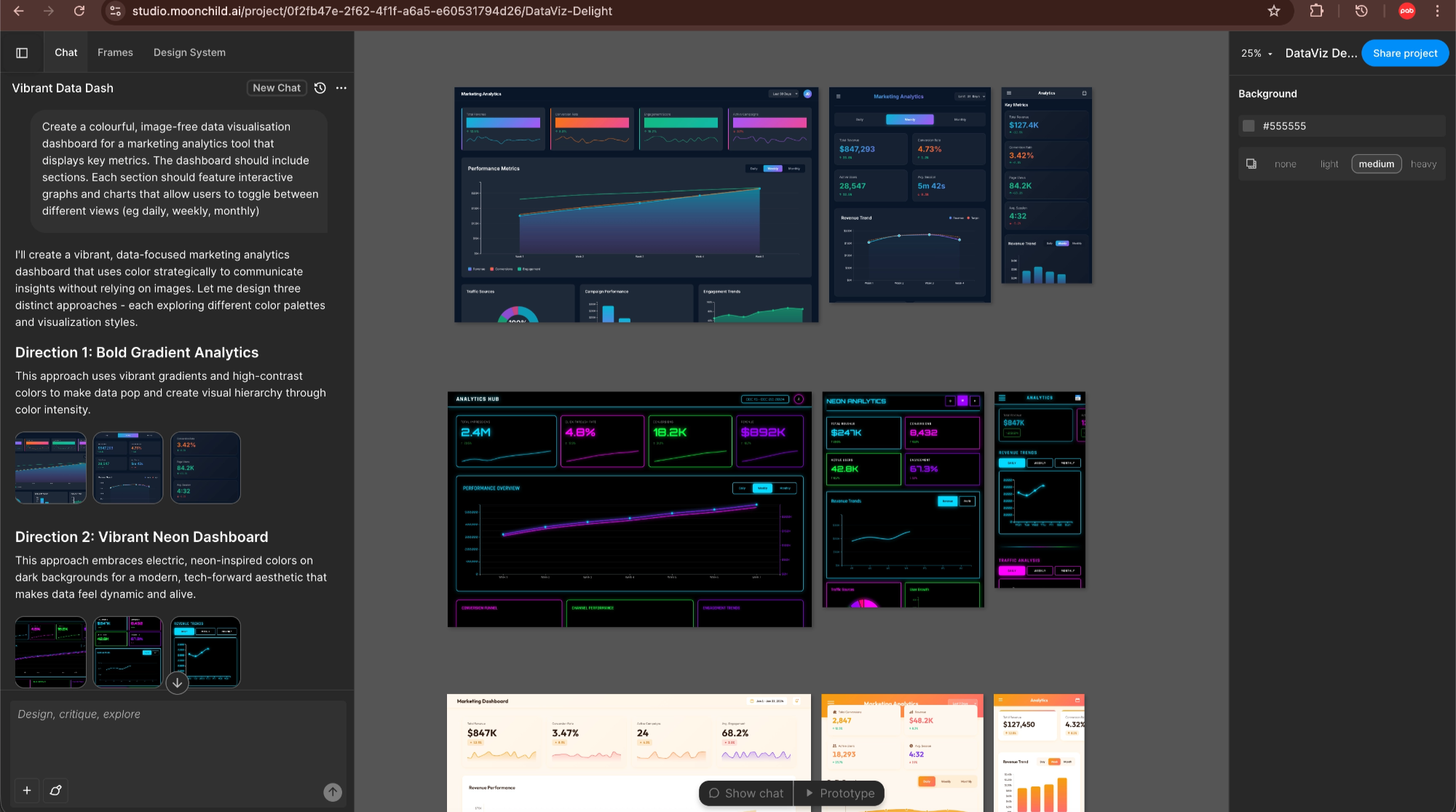
Most product teams already have a design system embedded in their Figma workspace: components, color styles, typography scales, and spacing rules that reflect months of design decisions.
That system is usually built for production work, but it often stays disconnected from early AI-driven exploration. When teams experiment with AI UI generation tools, the output typically uses generic components and styles rather than the system already defined in their design files.
Moonchild AI approaches this differently by allowing teams to import their existing design system from Figma so that generated screens can align more closely with the components and styles already used in their product.
This reduces the gap between AI-generated concepts and production-ready design work.
Why design system integration matters
Many AI UI generation tools produce layouts using their own internal component sets and color palettes.
The results can look visually polished, but they often don't match the design system used by the product team. When the designs are brought into Figma, designers typically spend time replacing elements with the correct components, reapplying styles, and adjusting spacing to match their system.
Moonchild's workflow aims to reduce that step by referencing the components and styles in a team's Figma design system during generation.
When the system is imported first, generated screens are more likely to follow the same design language used in the product.
This shifts Figma's role in the workflow. Instead of rebuilding the design to match the system, designers can focus more on refinement, edge cases, and handoff preparation.
A typical workflow without system integration
Consider a common scenario.
A design team builds a component library in Figma containing buttons, inputs, typography styles, and color tokens. When they generate UI with a typical AI design tool, the result often includes generic components and colors that resemble — but don't match — their actual system.
To make the screens usable, designers then replace generated UI elements with the correct components, reapply color styles and typography tokens, adjust spacing to match the grid system, and organize layers for developer handoff.
The generated output becomes a visual starting point, but additional work is required to align it with the production system.
A system-integrated workflow with Moonchild
With Moonchild, teams can import their Figma design system before generating screens.
When a design system is connected, Moonchild references the components, styles, and tokens defined in that file during generation.
As a result, exported screens are more likely to include component instances rather than detached shapes, styles that reference the system's color and typography tokens, and spacing that reflects the structure of the imported system.
Designers can then open the generated screens in Figma and continue refining them using their existing design workflow.
Importing a Figma design system into Moonchild
The import process connects Moonchild to the design system stored in your Figma workspace.
Step 1: Create a new Moonchild project
Start a new project and select the option to import a Figma design system. You'll authenticate with your Figma account and see the list of files you have access to.
Step 2: Select your design system file
Choose the Figma file that contains your components, styles, and tokens. Moonchild scans the file and identifies available design system elements such as components, color styles, typography styles, and spacing structures.
Step 3: Review the detected system
Moonchild displays the detected components and styles so you can confirm the system was imported correctly. If something appears missing, it may require adjustments to the Figma file structure before importing again.
Step 4: Generate screens using the imported system
After the system is connected, you can generate UI screens using a prompt, brief, or feature specification. The generated layouts reference the imported system so that the resulting designs better reflect your product's existing design language.
What happens when you export to Figma
When screens generated in Moonchild are exported to Figma, they retain references to the design system elements where possible.
In practice, this means designers may see component instances linked to the original library, styles referencing named color and typography tokens, and structured layers that match the component hierarchy.
This can help maintain consistency between generated screens and the rest of the design system. It also improves collaboration with developers, since token names and component structures remain visible in the design file.
Keeping the design system up to date
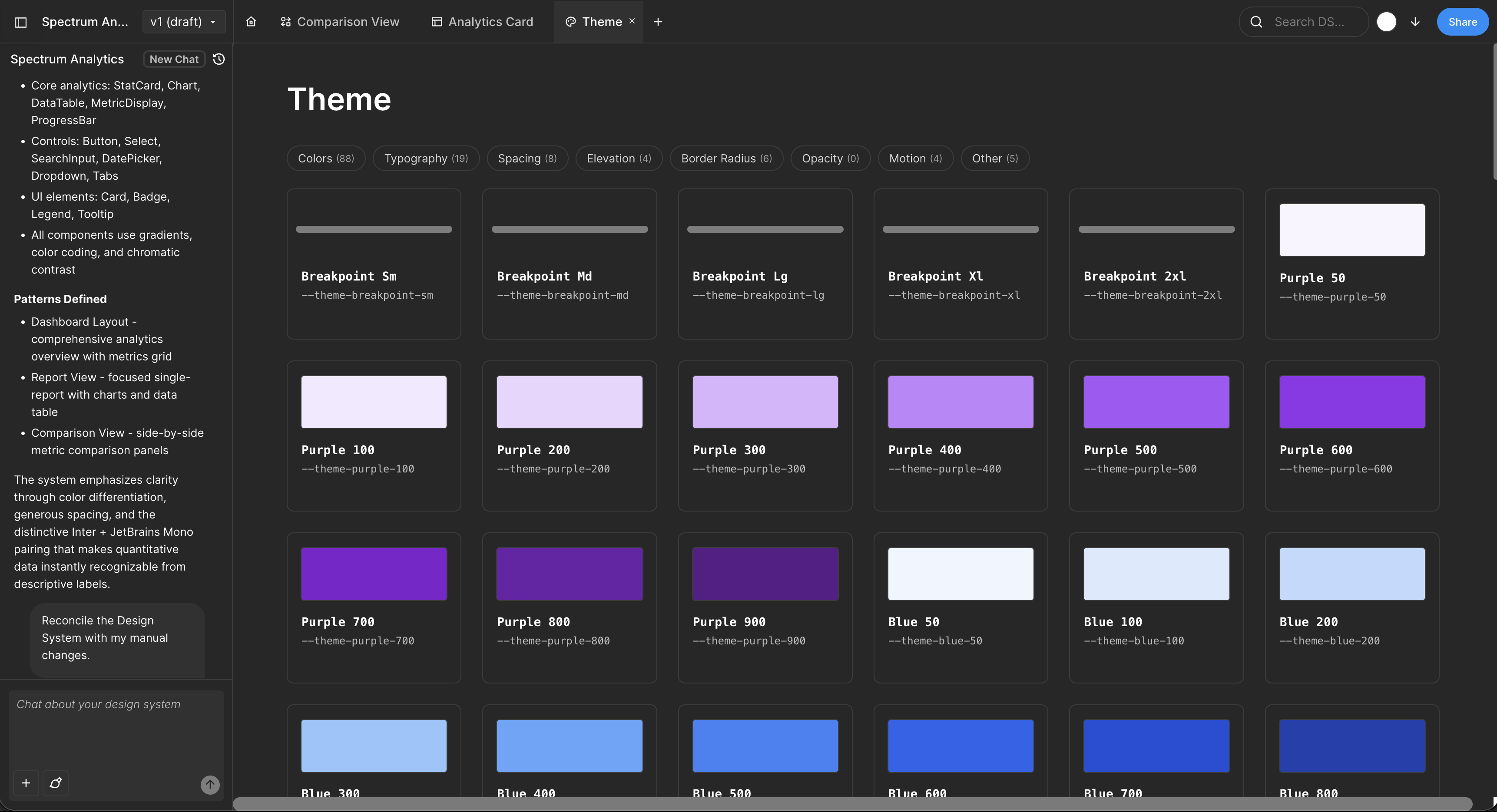
Design systems evolve over time. New components are added, tokens change, and patterns get refined.
When this happens, Moonchild projects can re-import the updated Figma system so that future generations reference the latest components and styles.
This ensures that newly generated screens continue to reflect the current state of the product's design language.
Structuring your Figma file for better imports
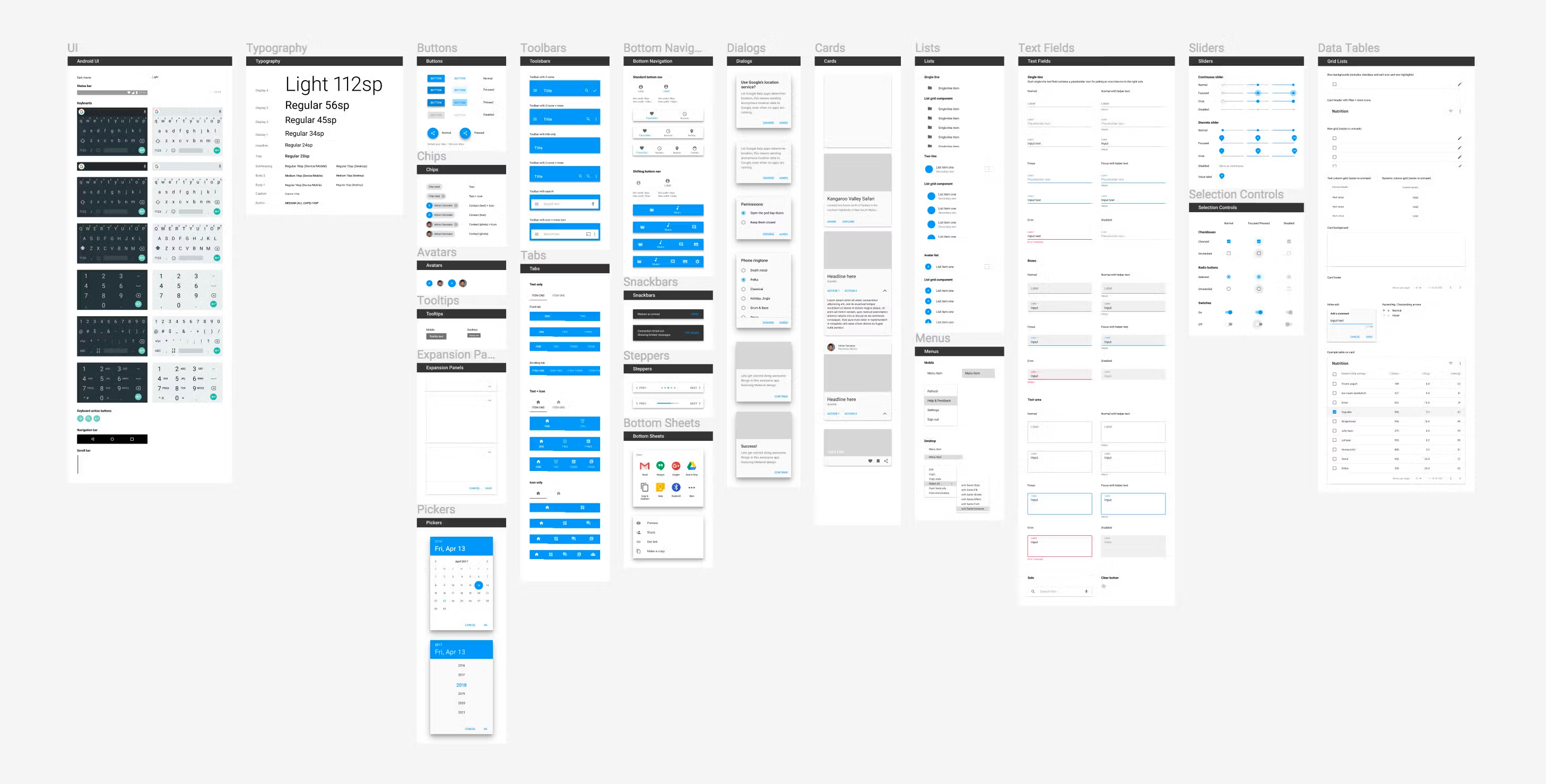
Design system organization affects how effectively tools can interpret it.
Before importing, it helps to ensure your Figma library follows consistent naming and hierarchy conventions.
Examples include:
Component naming — Button / Primary, Button / Secondary, Input / Text
Style naming — Color / Brand / Primary, Typography / Body / Regular
Clear naming helps Moonchild identify the purpose of each component and style more accurately during generation.
A practical way to use Moonchild with Figma
A common workflow looks like this:
- Import the Figma design system into Moonchild.
- Generate screens for a new feature or product flow.
- Export the results to Figma.
- Refine layouts, add edge cases, and prepare the file for developer handoff.
This approach keeps the design system central to both AI generation and final design work, reducing the gap between concept exploration and production-ready UI.
Try Moonchild
Want this for your team?
Bring your design system into Moonchild and let PMs, designers, and engineers ship on-brand UI together — without breaking consistency.
Written by
Steven SchkolneFounder of Moonchild AI. Building the AI-native platform for product design.
Related Articles
Rapid Prototyping 101 with AI: From Idea to Testable Design in Hours
AI tools like Moonchild AI let designers go from brief to testable, multi-screen prototype in under a day. Here's a step-by-step guide to rapid prototyping with AI.
How to Prototype Product Ideas from a Single Prompt
You have a product idea but no time to write a full spec. Here's how to go from a single written prompt to a visual prototype using AI design tools like Moonchild.
How to Turn Feature Specs into Clickable UI Prototypes
A feature spec defines acceptance criteria in text. AI tools like Moonchild can turn that spec into a clickable prototype so your team can validate it visually against each criterion.