Bringing Screens From Figma Into Moonchild
Updated January 14, 2026
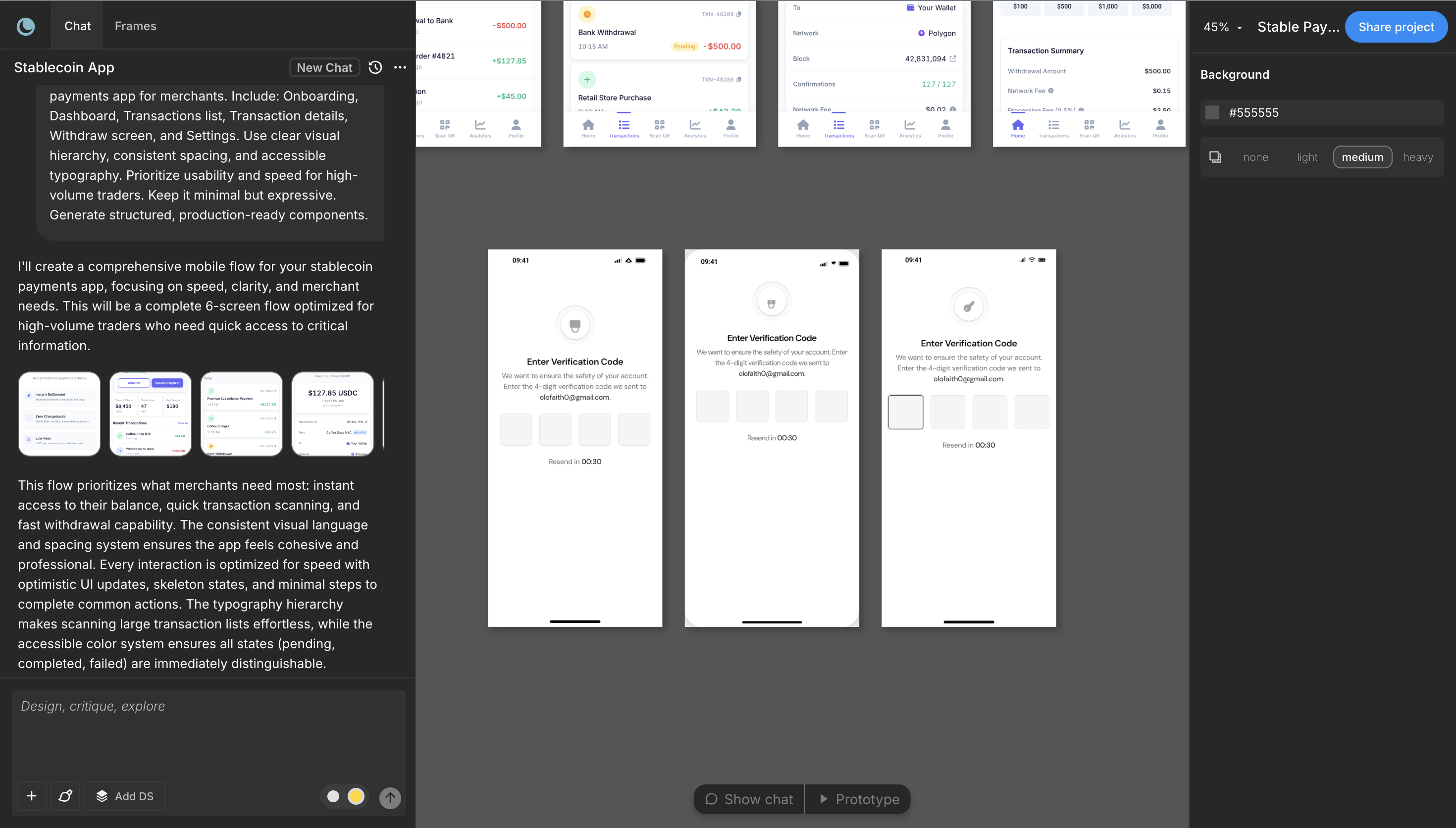
Many people think of Moonchild as a tool that only generates UI screens from prompts. But it can also work with existing designs.
If you already have screens in Figma, you can bring them into Moonchild and use them as a starting point for further exploration. This allows you to generate new variations, experiment with different layouts, or extend an existing flow without redesigning everything from scratch.
Why Import Figma Screens into Moonchild
Designers often reach a point where a screen works, but they want to explore other possibilities. Normally, that means manually duplicating frames and trying different layouts.
Importing a Figma screen into Moonchild changes that workflow. Instead of rebuilding variations by hand, the tool can analyze the layout and generate alternative directions based on the structure of the design.
This makes it easier to explore new ideas while still staying close to the original design language.
How to Bring Screens from Figma into Moonchild
The process is straightforward and only takes a few steps:
First, open the Figma file that contains the screens you want to explore further. Identify the frames you'd like Moonchild to work with.
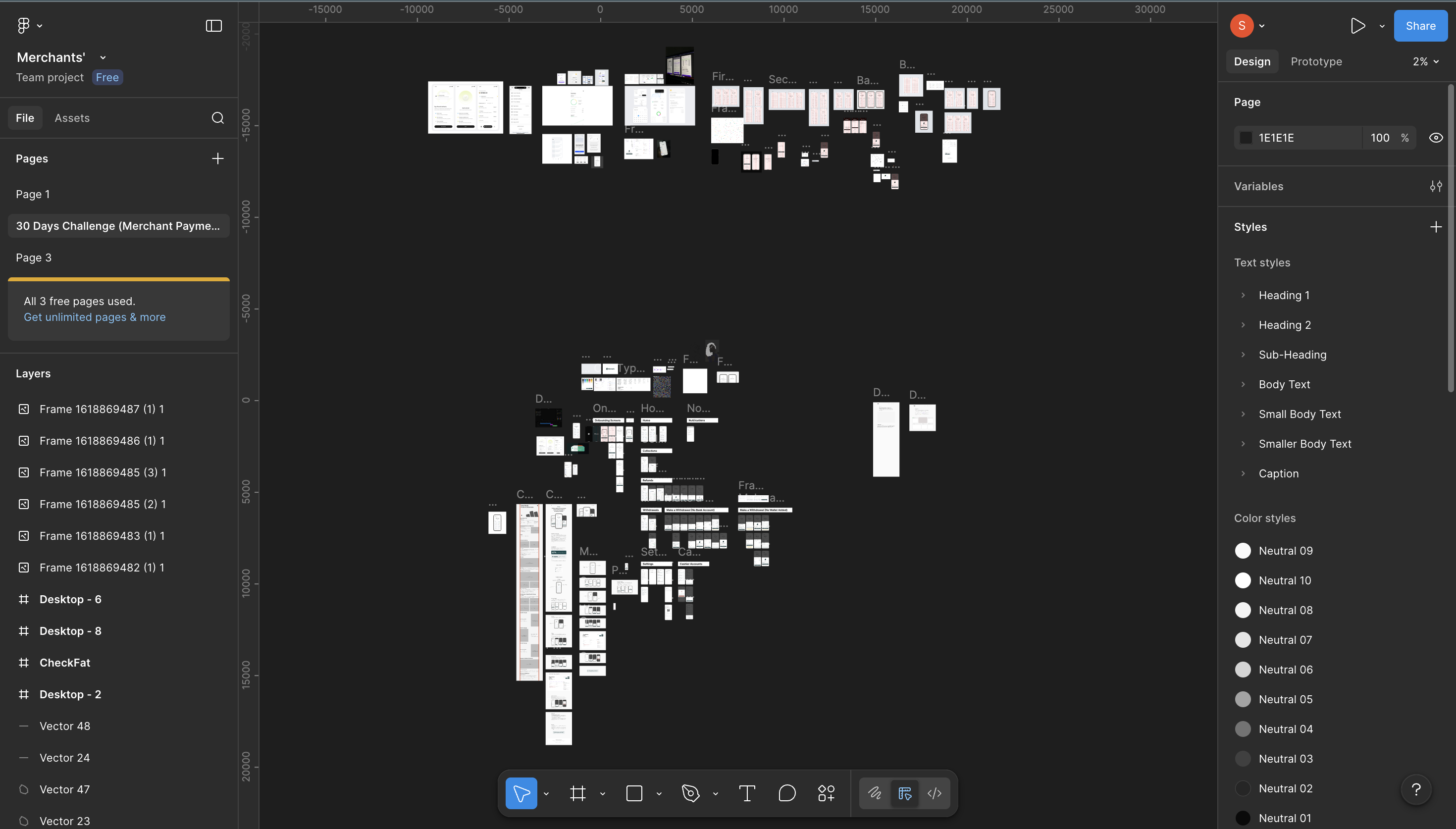
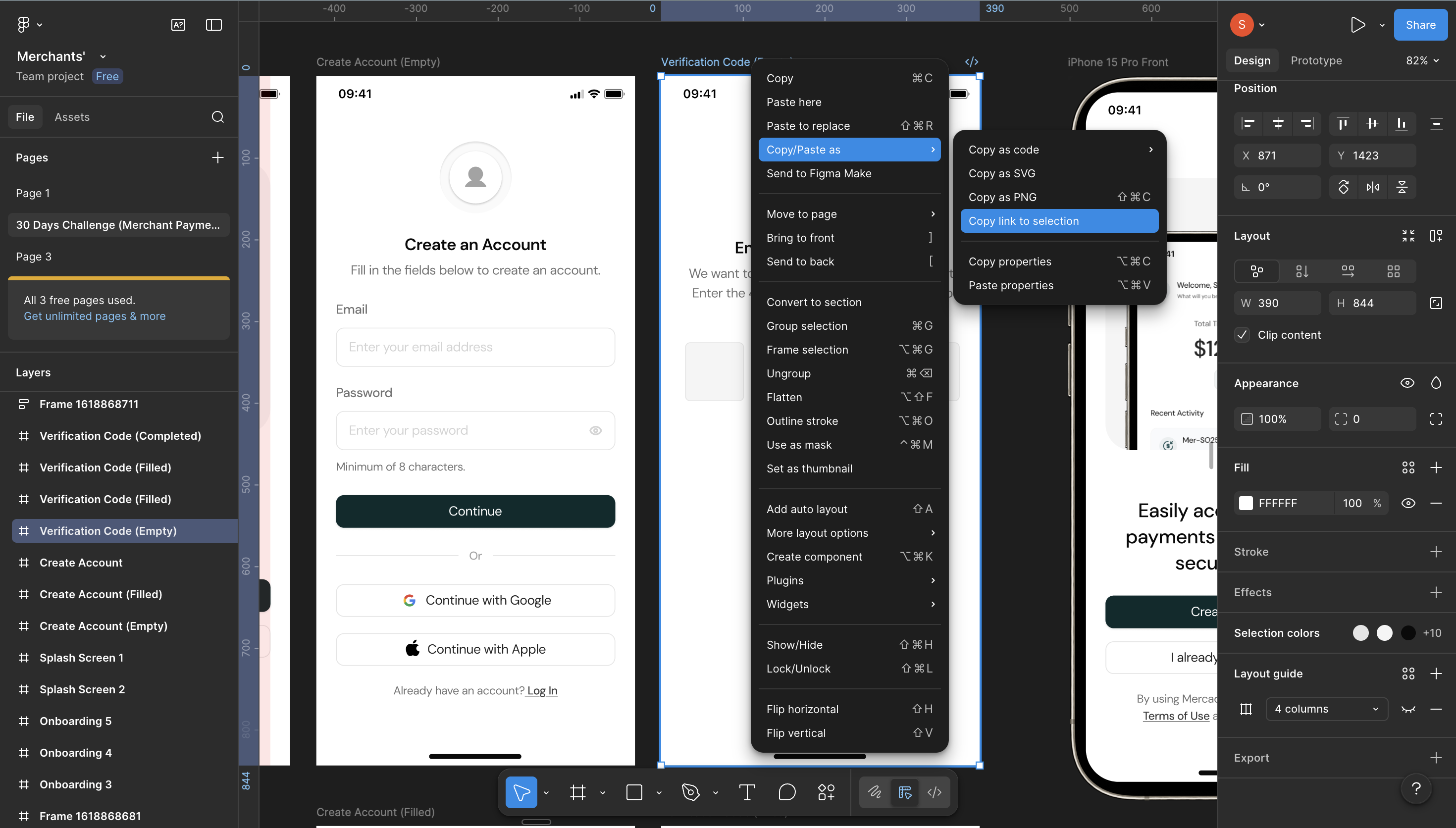
Next, copy those screens directly from Figma as "link to selection".
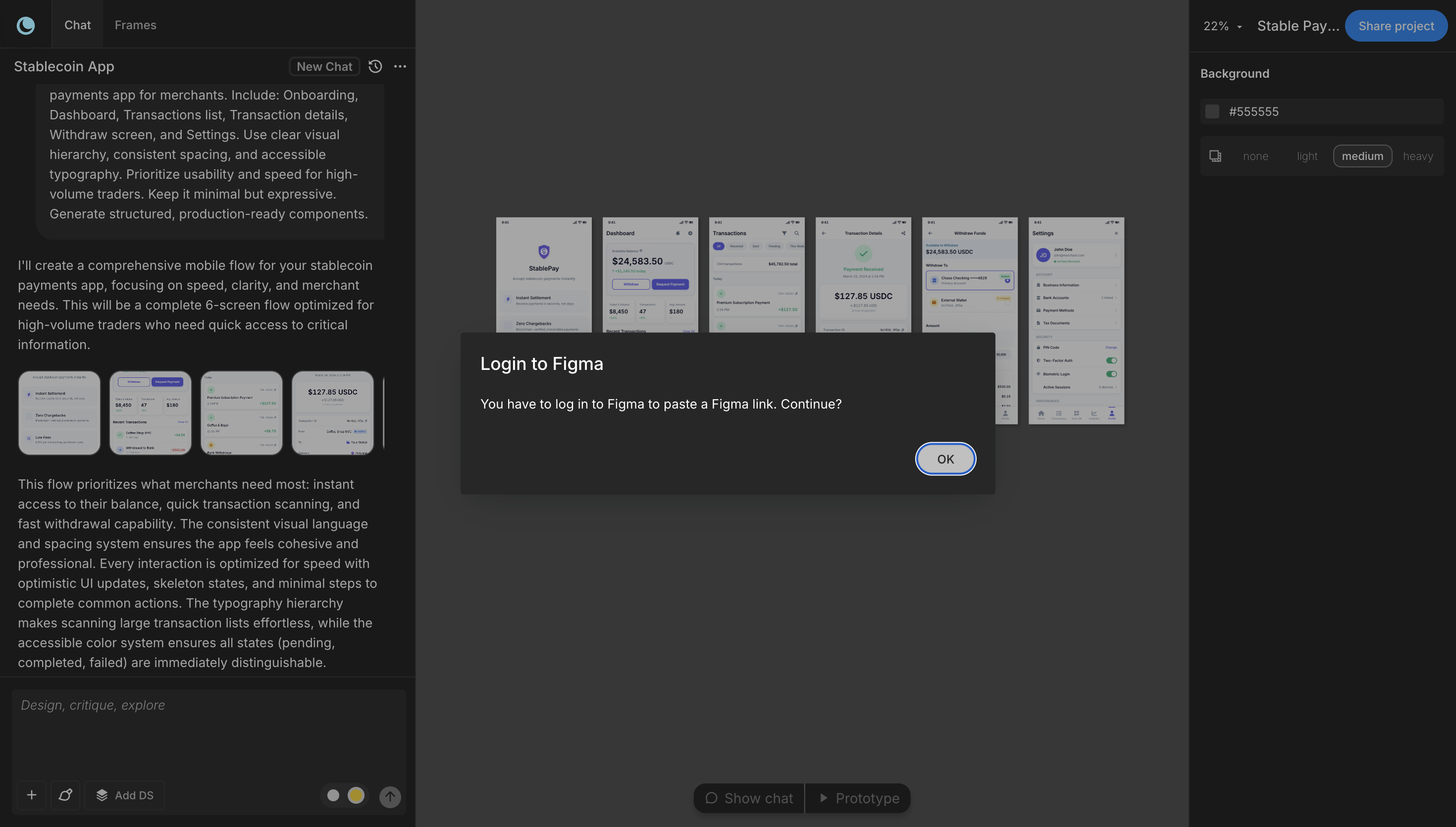
When you right-click on the canvas, and select Paste, you'll be redirected to Log into Figma. Once you click on "OK", you'll be redirected to the next step.
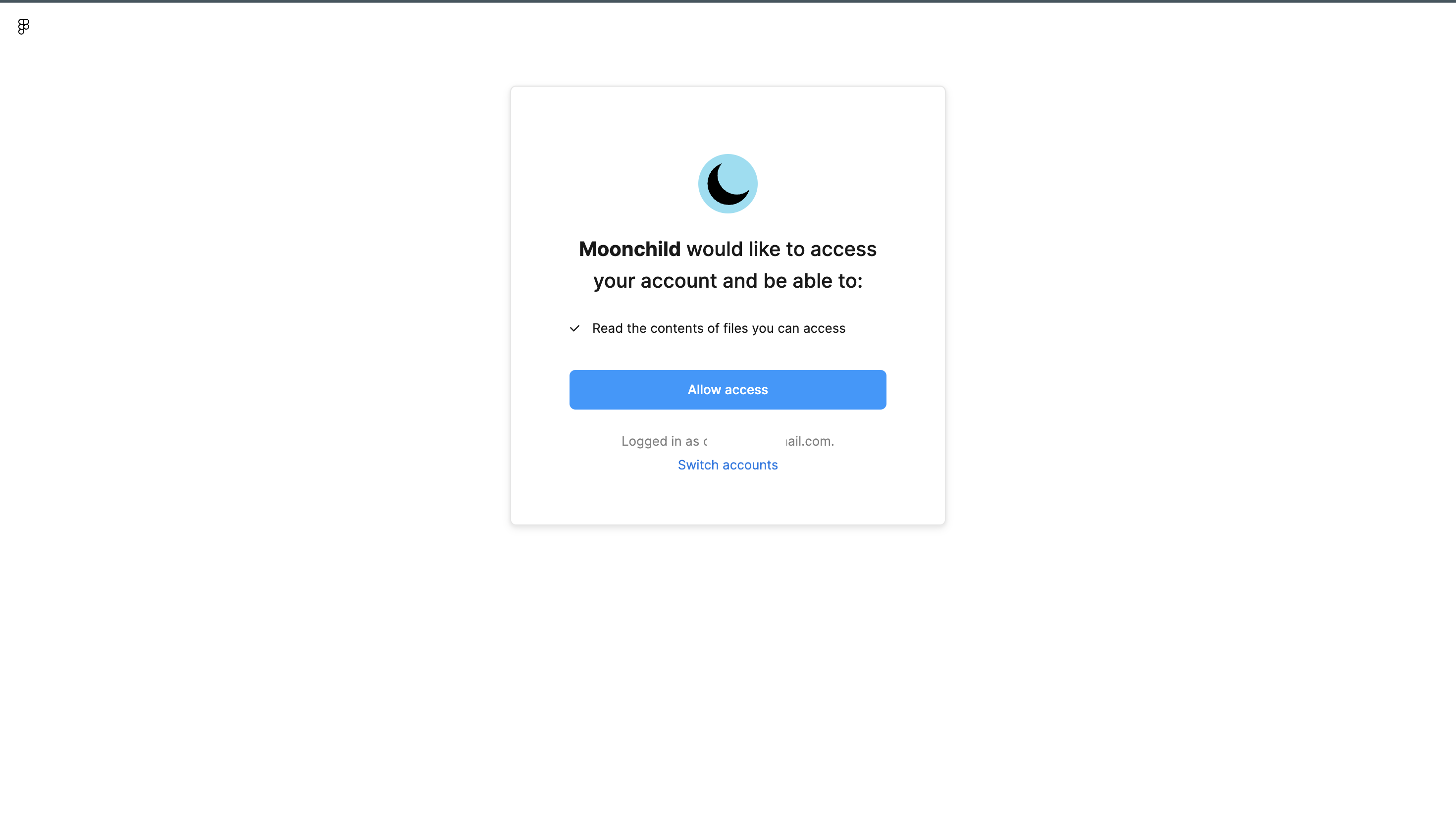
Next, give Moonchild access to your Figma files.
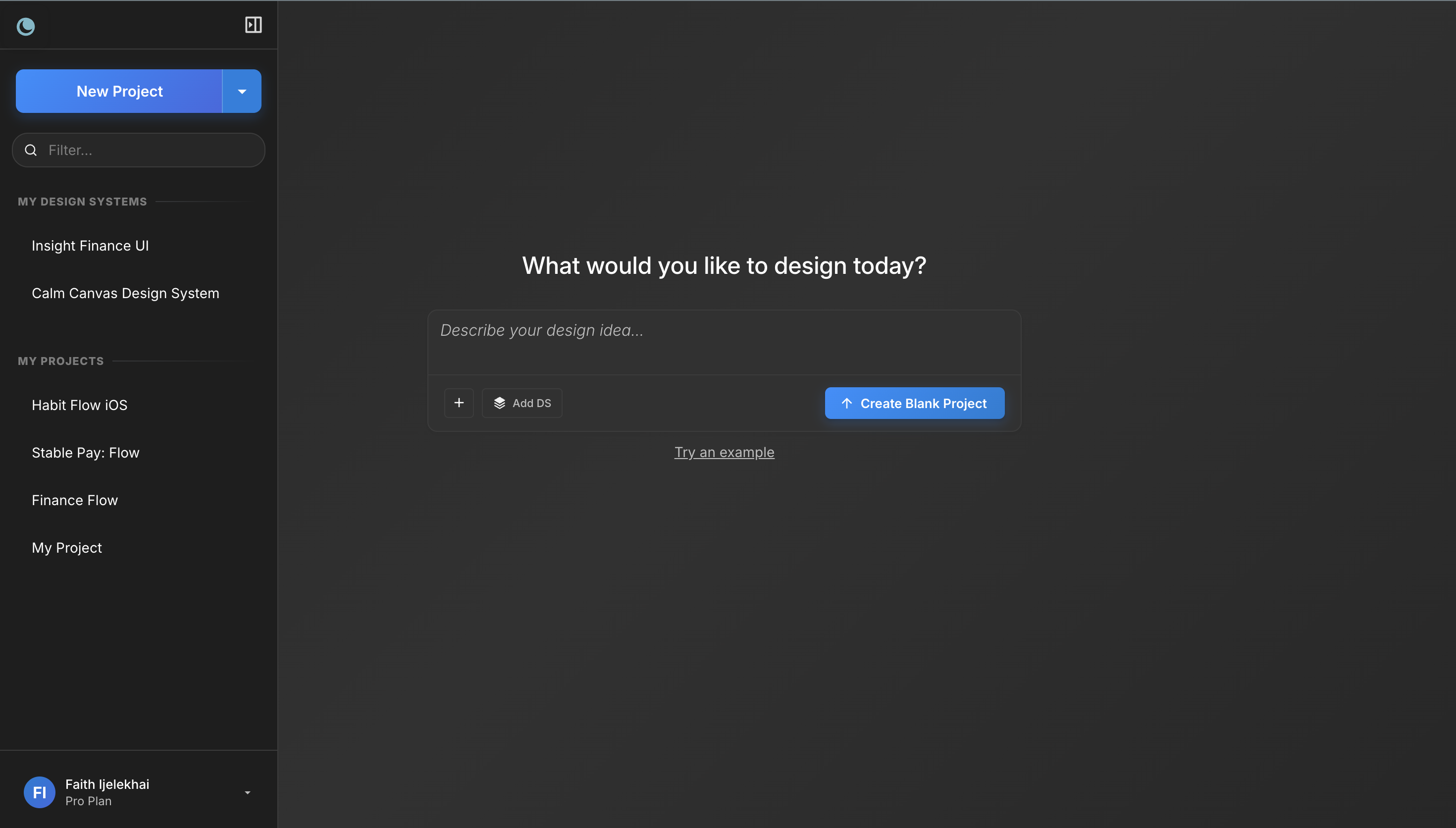
Once this is completed, you'll be automatically directed to a blank project screen in Moonchild Studio. Don't worry, just go to the side navigation and open the project you were working on.
Once you open the project, you'll see three versions of the design you pasted. These versions are very similar to the original screen from Figma, with small layout variations.
If you don't see the screens, return to Figma, copy the frames again, and paste them back into your Moonchild project.
When this workflow is useful
Exploring alternative layouts
Sometimes a screen works, but you want to see if there are better ways to structure it. Instead of manually duplicating frames and experimenting with different layouts, importing the screen into Moonchild allows you to generate multiple variations quickly.
This makes it easier to compare different layout ideas without spending time rebuilding the same screen repeatedly.
Staying close to your existing design system
When designs are generated from prompts alone, the results can sometimes drift away from your design system or product style.
Importing a Figma screen gives Moonchild a visual reference. This helps the generated layouts stay closer to the spacing, hierarchy, and component patterns already used in your product.
Testing multiple directions with your team
Design discussions often involve exploring different ideas before committing to a final direction. Normally, this requires manually creating several versions of the same screen.
Using Moonchild can speed up this process. By importing a Figma screen and prompting the tool to generate variations, teams can review multiple directions quickly and decide which one is worth refining.
Conclusion
Moonchild is often used to generate new UI flows from written prompts, but importing existing Figma screens opens another useful workflow.
By starting with a design you already have, you can explore variations and expand flows faster while still keeping the original structure and design language intact.
Try Moonchild
Want this for your team?
Bring your design system into Moonchild and let PMs, designers, and engineers ship on-brand UI together — without breaking consistency.
Written by
Steven SchkolneFounder of Moonchild AI. Building the AI-native platform for product design.
Related Articles
How to Export AI-Generated UI from Moonchild to Figma
You've generated screens in Moonchild that your team loves. Now you need them in Figma — not as static images, but as real, editable files. Here's how to do it in seconds.
How to Use AI to Rapidly Test Multiple UI Hypotheses
Every interface decision is a hypothesis. Instead of committing to one direction, use AI to generate multiple UI variants, test them fast, and validate the best approach before engineering begins.
How to Turn Product Prompts into Testable UI Flows
User testing requires screens that feel real enough for users to interact with naturally. Here's how to turn a product prompt into a testable UI flow in minutes with Moonchild AI.